Guide 1 of 12 · Getting started
Open your store in 5 minutes
Create your account, choose your shop’s web address, and start your free trial.
By the end of this guide you'll have a Kwimba account, a store with its own web address, and a free trial running. All you need is a phone and an email address. You don't need a card or an M-Pesa payment to start.
Step 1: Create your account
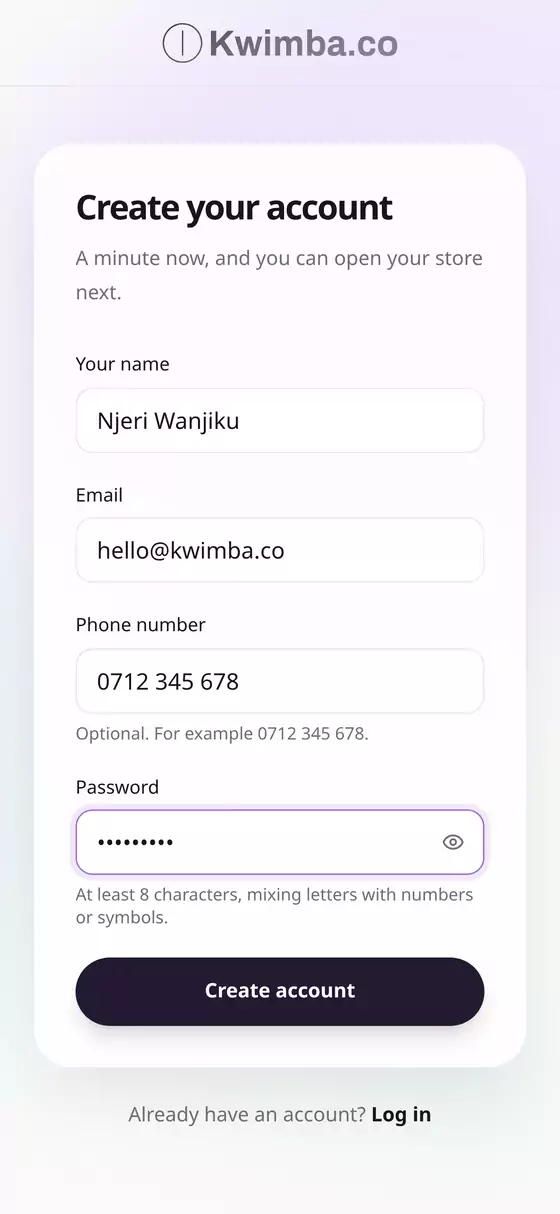
- Go to app.kwimba.co and tap Sign up (or Get started on kwimba.co).
- Fill in:
- Your name
- Email: you'll use this to log in.
- Phone number: optional, for example 0712 345 678.
- Password: at least 8 characters, mixing letters with numbers or symbols.
- Tap Create account.
- Check your email for a 6-digit code, type it in, and tap Continue.
- If the code hasn't arrived after a minute, check your spam folder or tap Send the code again.
- Trust this device is ticked already, so this phone won't ask for a code every time you log in. Untick it on a shared computer.
Good to know: Your account is you, not your business. You open the business itself, your store, in the next step. One account can run several stores.
Step 2: Name your store and pick its web address
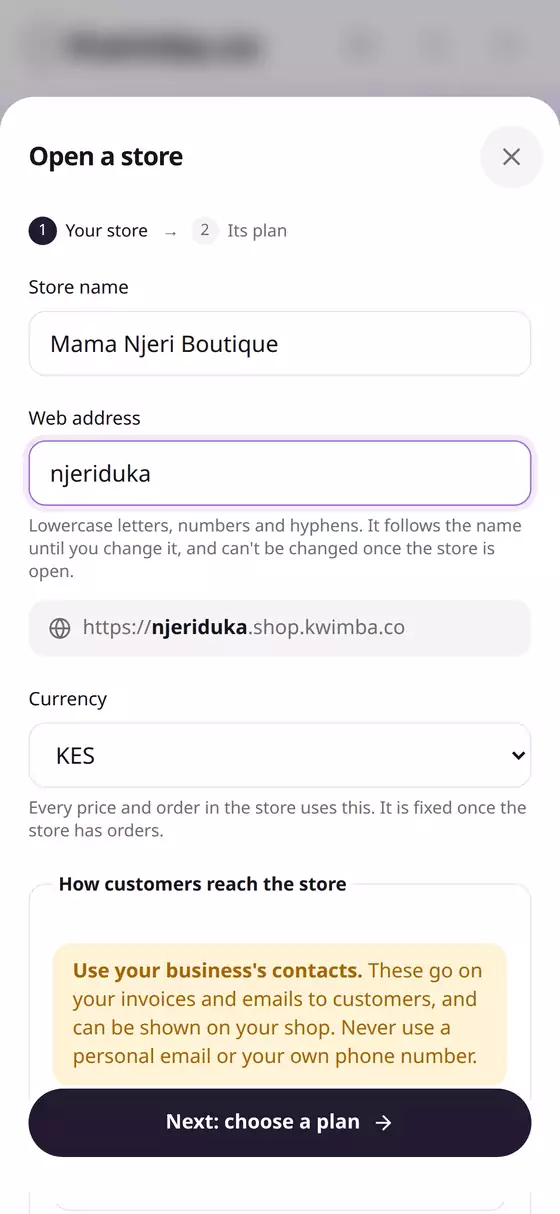
On Your stores, tap Open a store.
- Store name: the name your customers know you by, e.g. Mama Njeri Boutique.
- Web address: this fills itself in from the name (e.g.
mama-njeri-boutique). Under the box you'll see your full shop link:https://mama-njeri-boutique.shop.kwimba.coChange it now if you want something shorter, e.g.njeriduka. Use lowercase letters, numbers and hyphens only. - Currency: KES for most stores in Kenya. Every price and order uses it.
Choose the web address carefully. It can't be changed once the store is open. A short, easy-to-say address is easier to put on a poster or say over the phone. On the Growth plan you can also connect your own domain later, such as
shop.mamanjeri.co.ke.
Step 3: Add how customers reach you
Under How customers reach the store:
- Business email: where customers' order emails come from and replies go to, e.g.
orders@njeriduka.co.ke. It's printed on your invoices. - Tick Add a business phone number to put a phone number on your shop.
- Leave Customers can order on WhatsApp on this number ticked if you'd like orders from your shop to open a WhatsApp chat with you, already typed out. Most shops in Kenya keep this on.
Use your business contacts, not personal ones. Customers will see them. If you don't have a business line yet, you can skip the phone and add it later in Settings.
Tap Next: choose a plan.
Step 4: Choose a plan and start your free trial
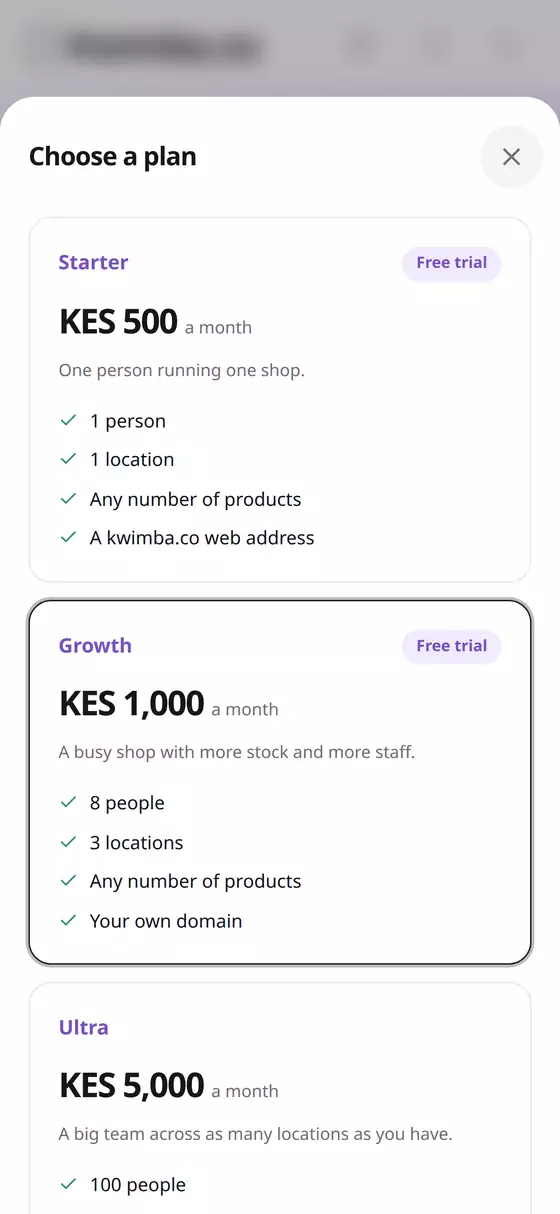
| Plan | Price | Good for |
|---|---|---|
| Starter | KES 500 a month | One person running one shop |
| Growth | KES 1,000 a month | A busy shop with staff (up to 8 people) and up to 3 locations, plus your own domain |
| Ultra | KES 5,000 a month | Large teams across many locations |
- Starter and Growth come with a 14-day free trial. Pick one and tap Start free trial on Starter (or Growth).
- Use the switch at the top to see yearly prices. Paying yearly costs the same as 10 months.
- Ultra has no free trial: the button reads Open store and pay, and the store opens once you've paid by M-Pesa.
Not sure which to pick? Start the trial on Growth so you can try everything. You can change plan at any time from Billing.
Step 5: You're in
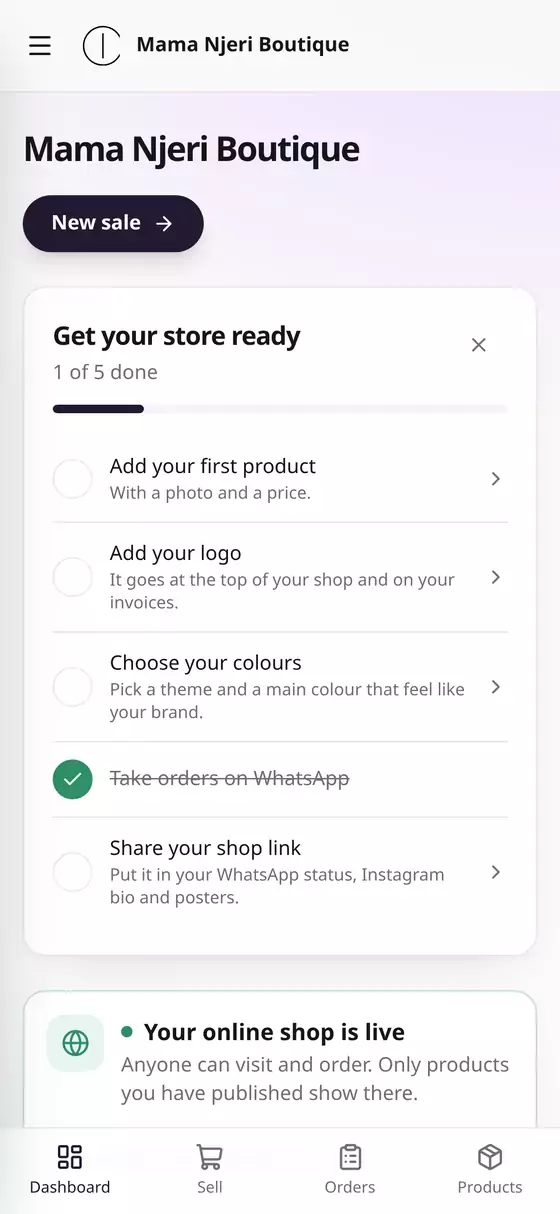
You're taken straight to your store's dashboard. At the top is Get your store ready, a short checklist that ticks itself off as you go:
- Add your first product
- Add your logo
- Choose your colours
- Take orders on WhatsApp
- Share your shop link
Under it is your online shop card. Your shop is already live at its web address, and only products you publish show there.
When the free trial ends
- You can see the date your trial ends in Billing. Kwimba also emails you 4 days before it ends and again the day before.
- Pay any time before then and the store carries on without a break.
- If it ends unpaid, your store and online shop close to customers.
- Nothing is deleted. Pay for your plan by M-Pesa from Billing and the store opens again straight away, with your products, stock, orders and customers just as you left them.
Questions
Can I use Kwimba on my phone? Yes. Everything in this guide, and everything else in Kwimba, works in your phone's browser.
I made a mistake in my store name. You can change the name in Settings. Only the web address is fixed.