Guide 2 of 12 · Getting started
Add your products
Photos, prices, and the sizes or colours each product comes in.
By the end of this guide you'll have a product in your store with a photo and a price, in the sizes you sell it in, ready to ring up at the counter and to show in your online shop.
The example is a linen shirt that comes in four sizes, with the largest size priced a little higher.
Step 1: Open the product form
- Tap Products at the bottom of the screen.
- Tap Add your first product. Once you have products, the button is Add product, at the top.
Good to know: Every field shows who sees it. Shoppers see this means it appears in your online shop. Only your team means it stays inside Kwimba.
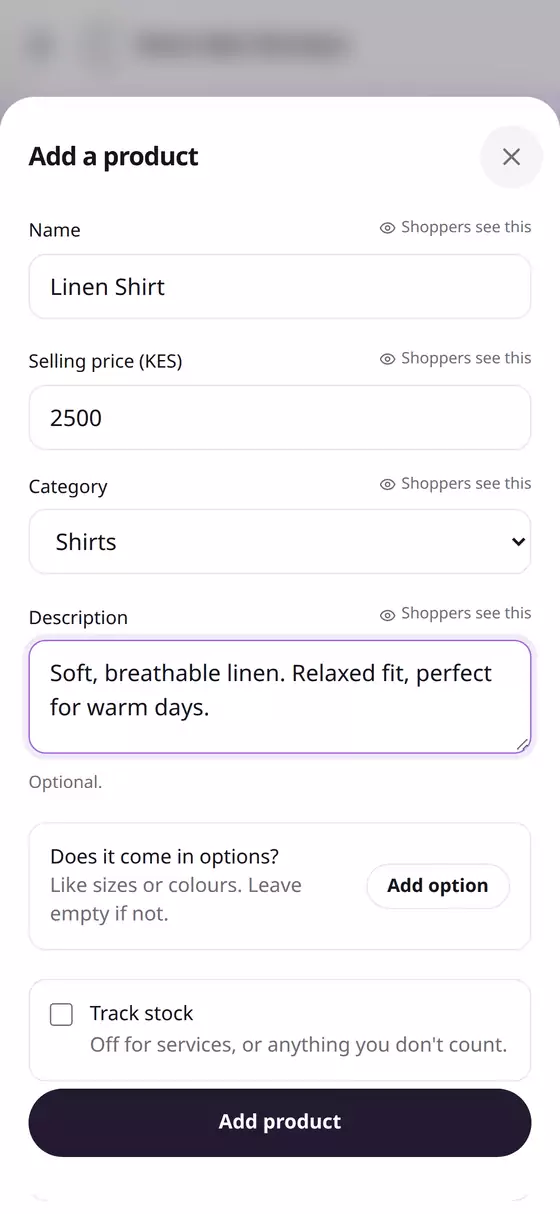
Step 2: Name, price and category
- Name: what customers call it, e.g. Linen Shirt.
- Selling price: what customers pay, e.g. 2500. Leave out the commas.
- Category: groups products in your shop, e.g. Shirts. To make a new one, choose + New category…, type the name and tap Add.
- Description: optional, but it helps people buy online. Say what it's made of, how it fits and what it's good for.
Step 3: Sizes, colours and other options
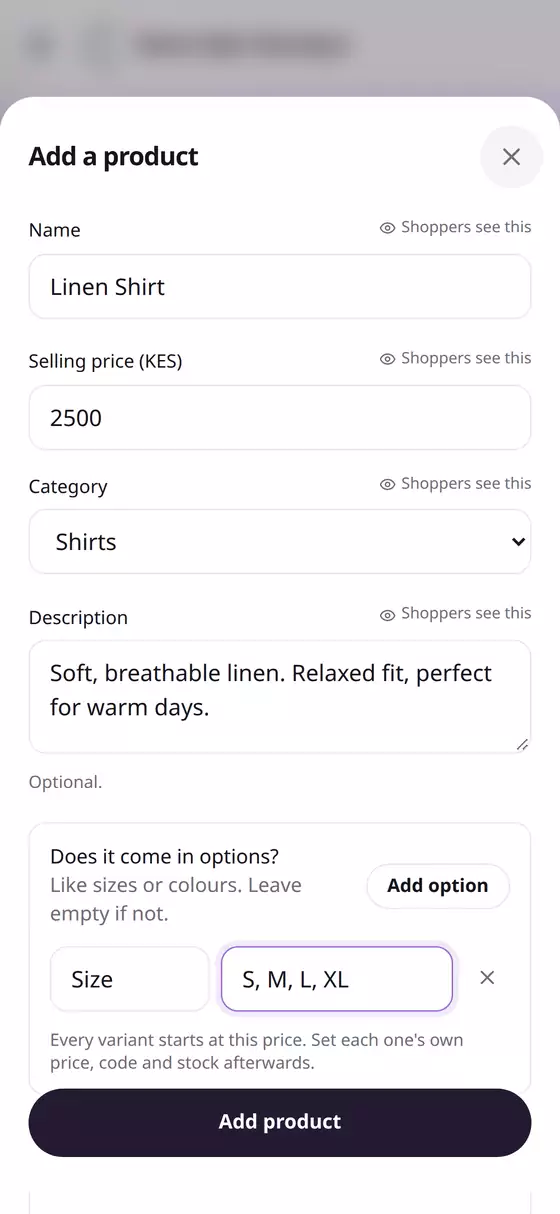
If the product comes in more than one version, tap Add option under Does it come in options?
- In the first box type the option's name, e.g. Size.
- In the second box type its choices, separated by commas, e.g. S, M, L, XL.
- You can add up to 3 options, e.g. Size and Colour.
Kwimba makes a variant for every combination, so Size S, M, L and XL gives four. They all start at the price you typed, and you can give any of them its own price later (Step 6).
If it comes one way only, skip this step.
Step 4: Was price and buying price (optional)
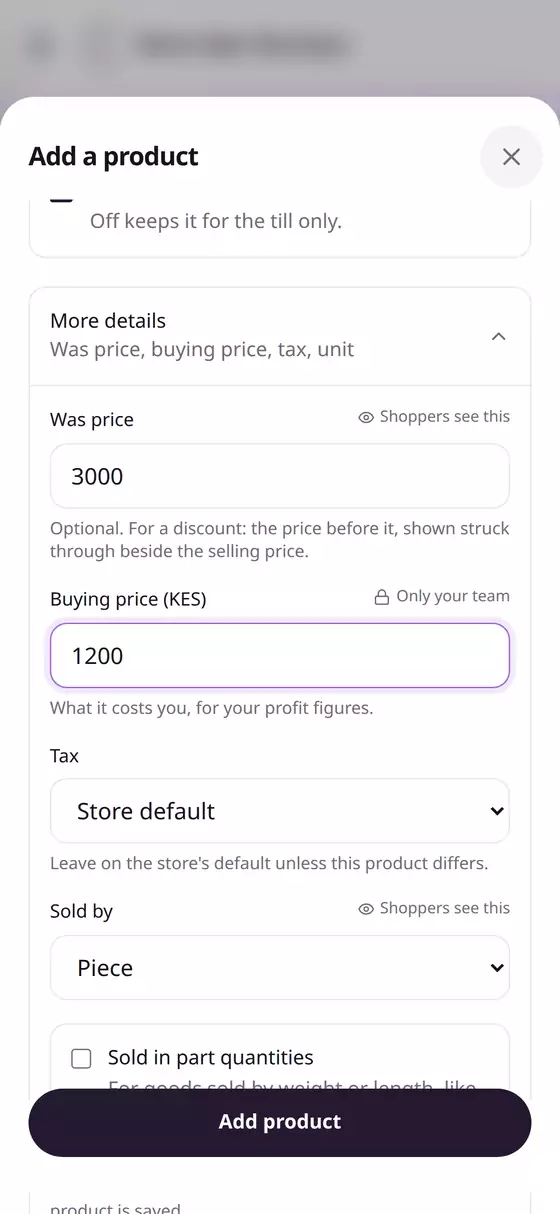
Tap More details:
- Was price: the price before a discount, e.g. 3000. Your shop shows it struck through beside the selling price,
KES 3,000KES 2,500, and the product gets an Offer badge. It only shows when it's higher than the selling price. - Buying price: what the product costs you, e.g. 1200. Only your team sees it, and Kwimba uses it to work out your profit in your reports.
- Sold by: Piece for most things. Choose Kilogram, Litre or Metre for goods sold by measure, and tick Sold in part quantities if you sell, say, 0.5 kg.
- Tax: leave it on Store default unless this product is taxed differently.
Two switches sit above More details:
- Track stock: turn this on if you want Kwimba to count how many you have. That's the next guide, so you can leave it off for now and switch it on later.
- Show on the storefront: on by default. Turn it off for things you only sell at the counter.
Tap Add product.
Step 5: Add photos
You're taken to the product's page. Scroll down to Photos:
- Take a photo opens your phone's camera.
- From gallery lets you pick photos you already have, several at once.
You can add up to 10 photos. The first one is the main photo in your shop. Large photos are made smaller before they upload, so they don't use much data. To remove a photo, tap the red bin on it.
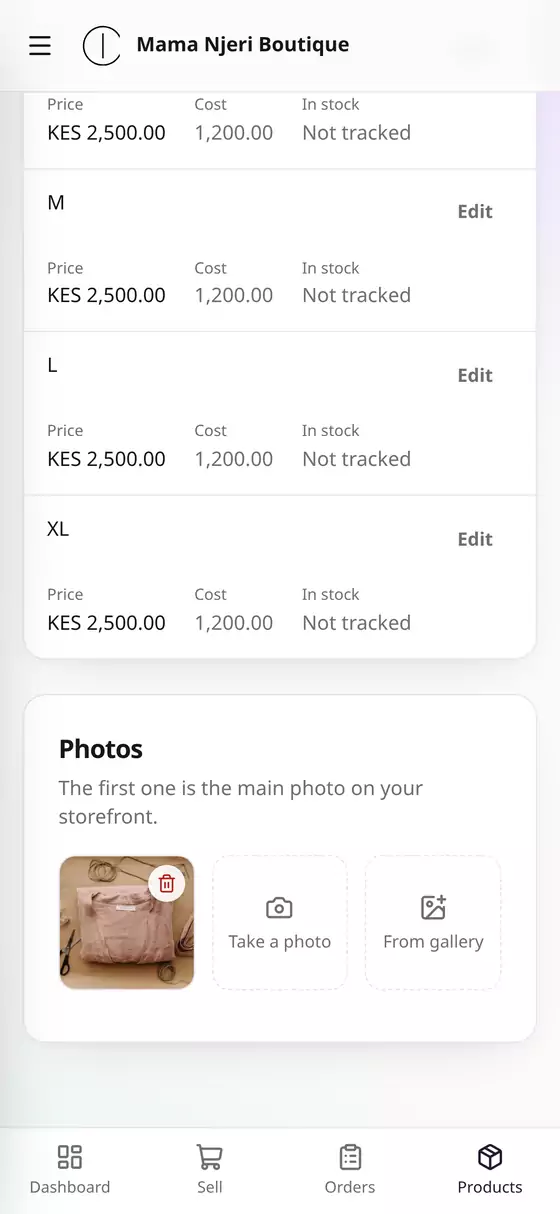
Photo tip: Shoot in daylight near a window, against a plain background, with the product filling most of the picture. A clear photo sells more than a long description.
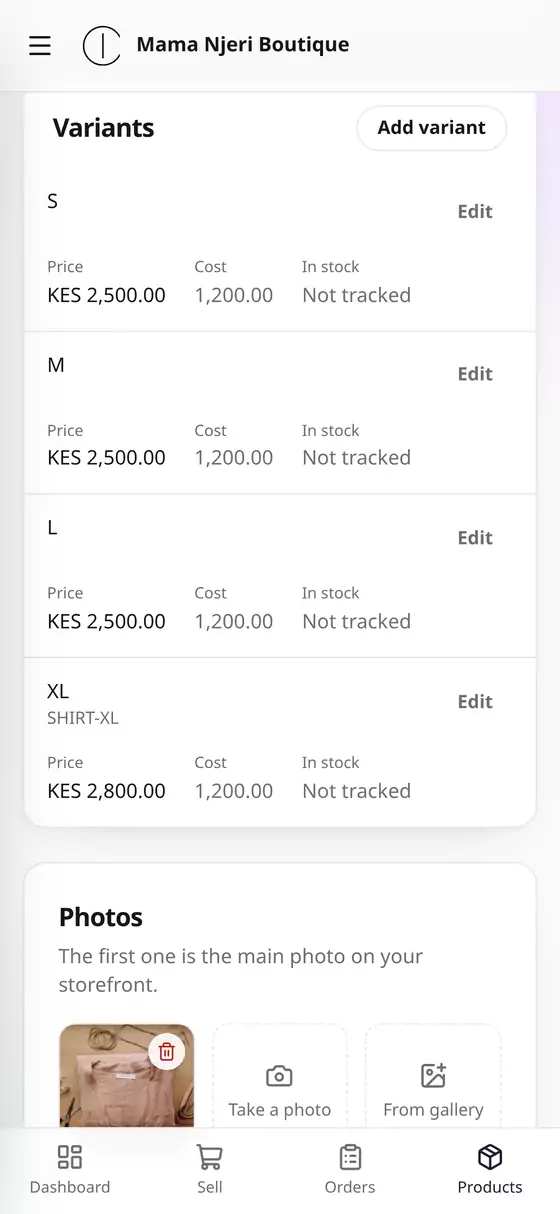
Step 6: Give a variant its own price
Under Variants you'll see each size with its price. To change one:
- Tap Edit beside it, e.g. XL.
- Change the Selling price, e.g. 2800.
- Optionally add a SKU (your own product code, e.g. SHIRT-XL) or a Barcode.
- Tap Save.
To stop selling one size without deleting it, open it and switch off Available.
Step 7: See it in your shop
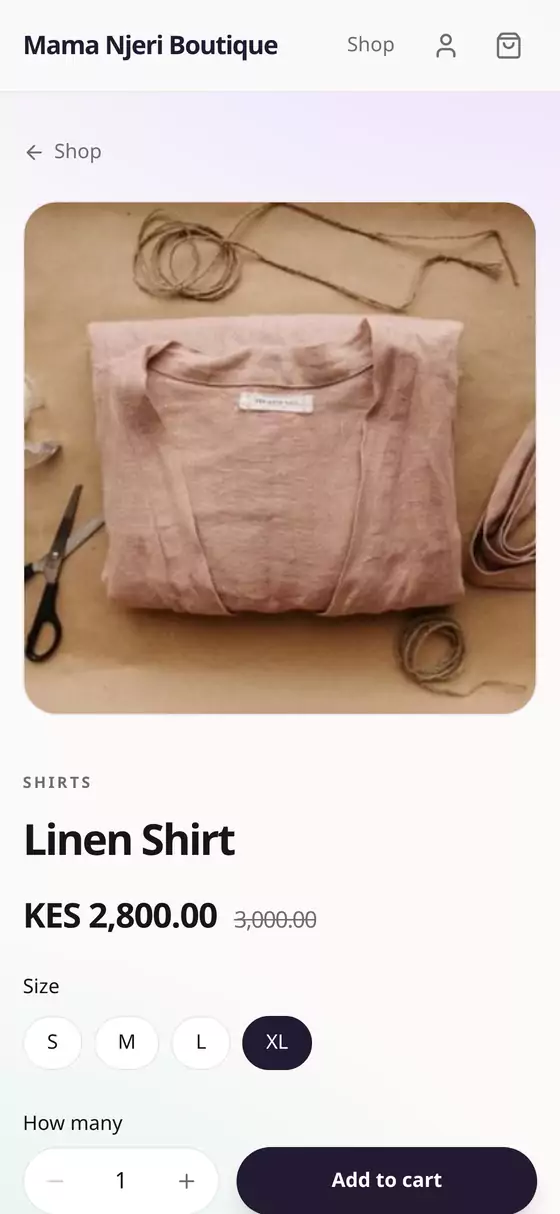
Open your shop link, e.g. njeriduka.shop.kwimba.co. The product is there with its photo, category and sizes, and the price changes as shoppers pick a size.
Lots of products? Import them from a file
On Products, tap Import:
- Tap Download template. It's an Excel file with a column for each detail and a sheet explaining them.
- Fill in one row for each product.
- Upload it (Excel or CSV) and tap Add products.
If any row has a problem, nothing is added. Kwimba lists each problem by row so you can fix the file and upload it again.
Questions
How do I change a product later? Open it and tap Edit. You can change everything you set when you added it, and add more sizes or colours.
How do I change the order the sizes are shown in? Sizes are listed in the order you type them. To change it, open the product, tap Edit, and under Options drag a size by its handle (⋮⋮) to where you want it, then tap Save changes. Your shop, the till and the Stock page all follow the new order.
How do I stop selling a product without losing its sales history? Tap Edit and switch off For sale.
Can I add my own fields, like Brand or Material? Yes. On Products, tap Categories and fields. Fields you add there appear on every product's form.