Guide 3 of 12 · Getting started
Bring in your existing stock
Tell Kwimba what is on your shelves, and get warned before you run out.
By the end of this guide Kwimba will know how many of each product you have on your shelves. It will count them down as you sell and warn you before you run out.
The example carries on with the Linen Shirt from the last guide: 5 in size S, 8 in M, 6 in L and 3 in XL.
Step 1: Switch on stock counting for the product
Kwimba only counts products you ask it to. That way services, or things you don't count, never show as "out of stock".
- Open Products and tap the product.
- Tap Edit.
- Tick Track stock.
- Tap Save changes.
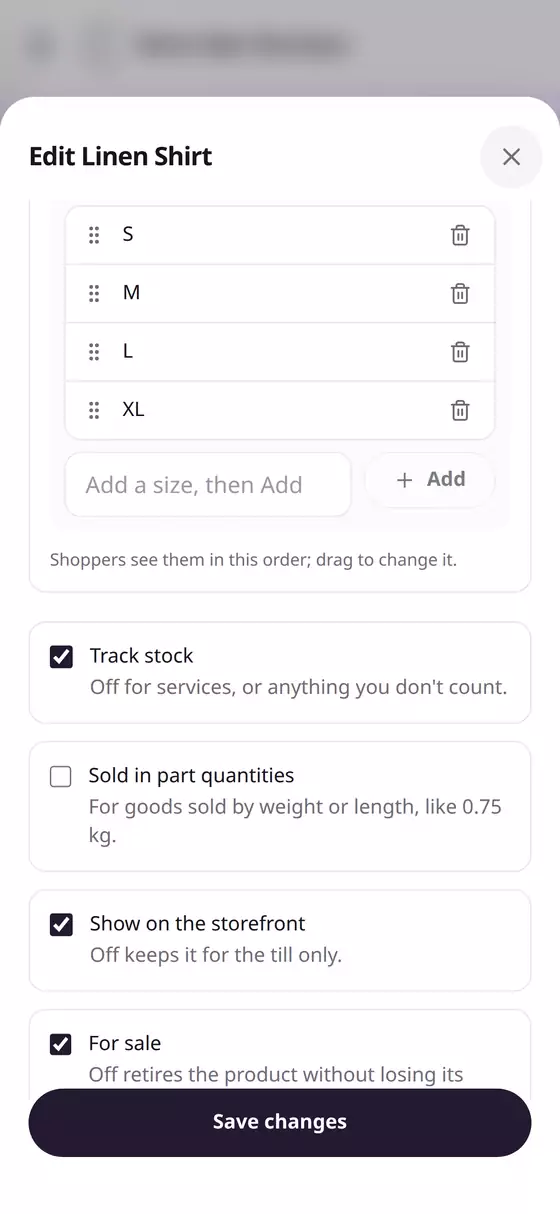
Adding a new product? Tick Track stock in the form, and a box appears asking How many do you have now? Type the number there, and you can skip Step 2 for that product.
Step 2: Put in what's on the shelf
Each size now has a Stock button.
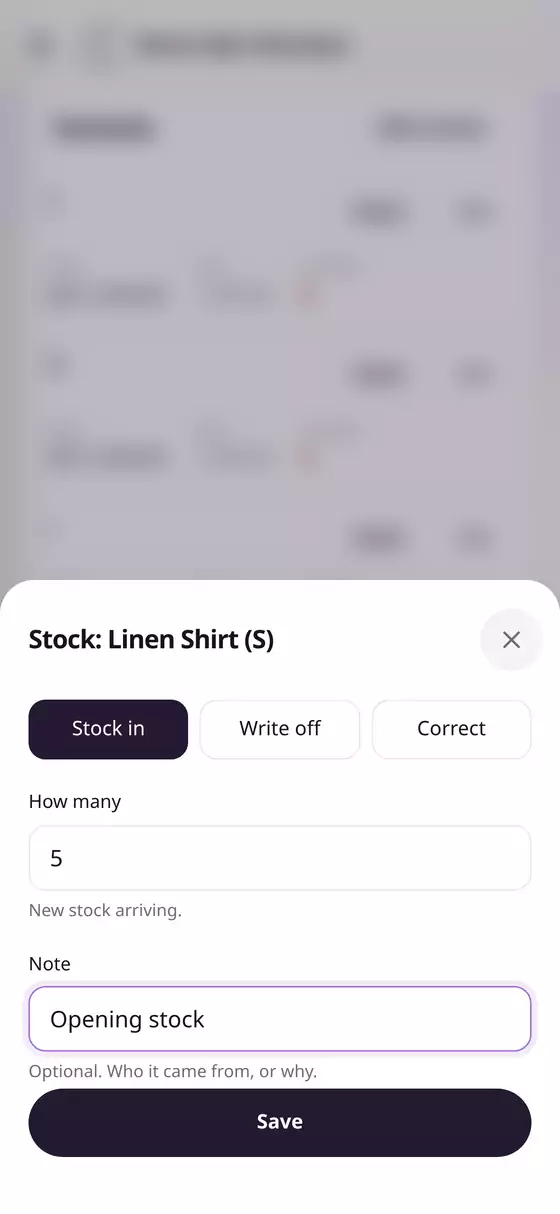
- Tap Stock beside a size, e.g. S.
- Leave Stock in selected.
- How many: count what's on the shelf and type it, e.g. 5.
- Note (optional): e.g. Opening stock, so you know later where the number came from.
- Tap Save.
Do the same for each size. In stock under each size updates as you go.
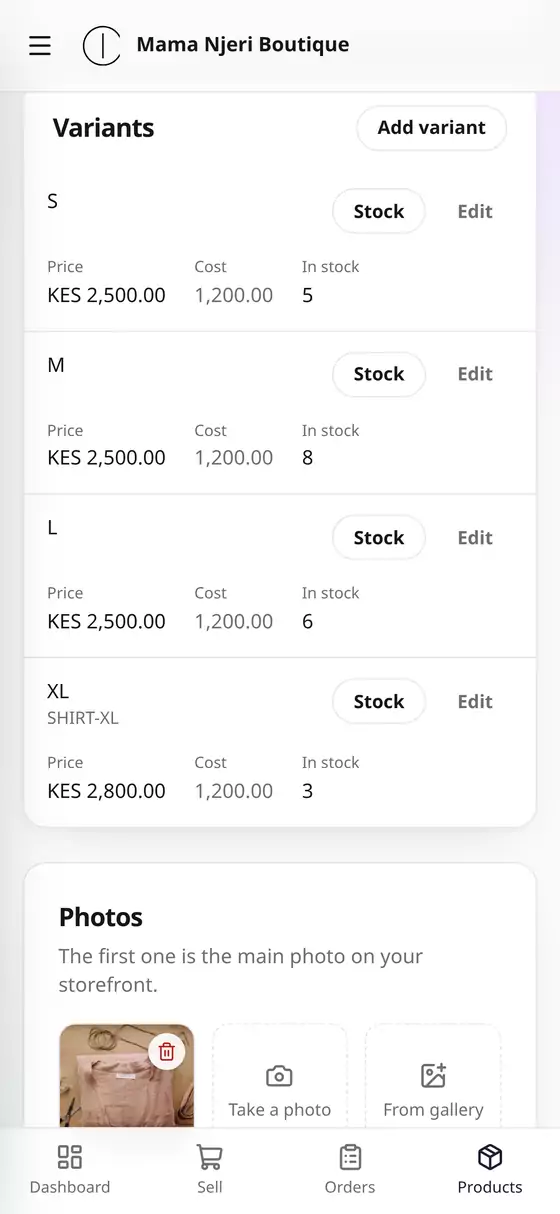
Good to know: Stock is never typed over. Every change is recorded with who made it and when, so the numbers can always be explained.
Step 3: See all your stock in one place
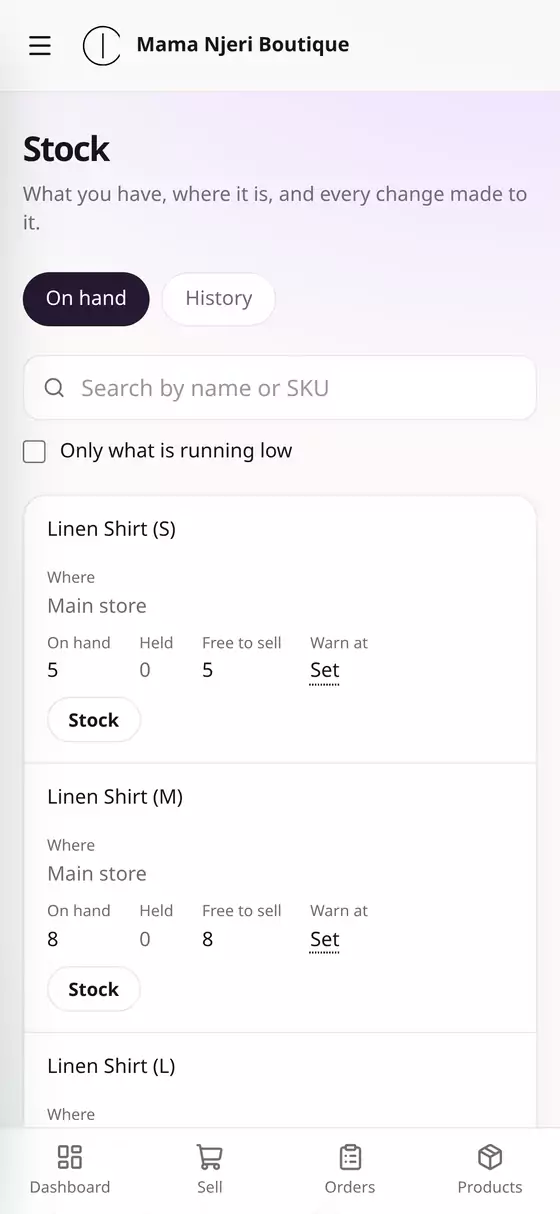
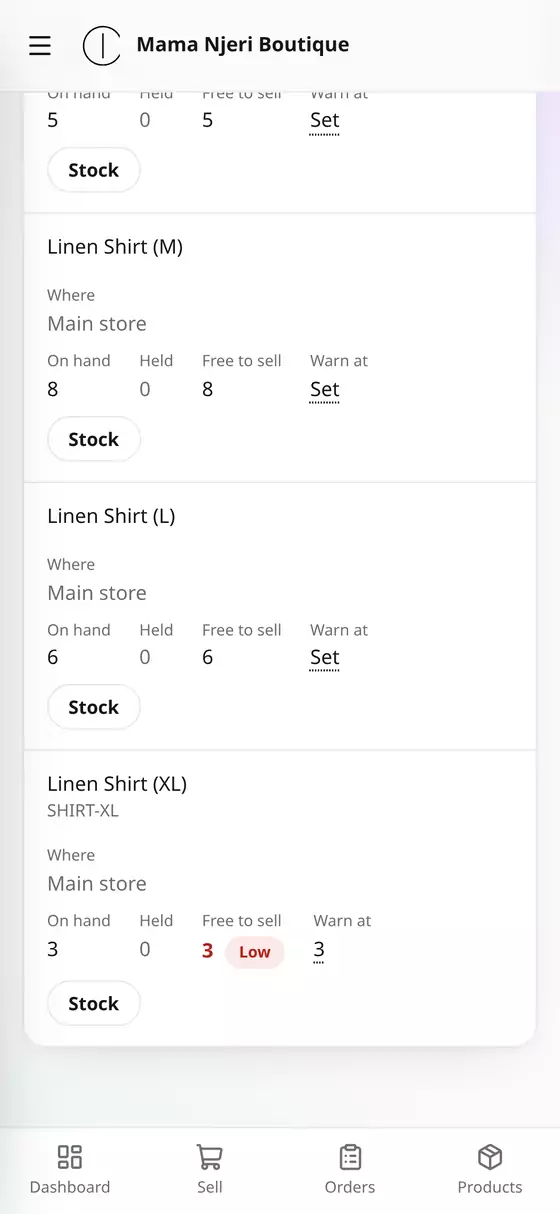
Open the menu (☰, top left) and tap Stock. On hand lists every product and size you track, with:
- On hand: how many you have.
- Held: set aside for orders that aren't finished yet.
- Free to sell: what's left to sell.
- Warn at: when to warn you it's running low (Step 4).
Search by name or SKU at the top. Tick Only what is running low to see only what needs restocking.
Step 4: Get warned before you run out
- On the Stock page, find the product and size, e.g. Linen Shirt (XL).
- Under Warn at, tap Set.
- Type the number to be warned at, e.g. 3.
- Tap Save.
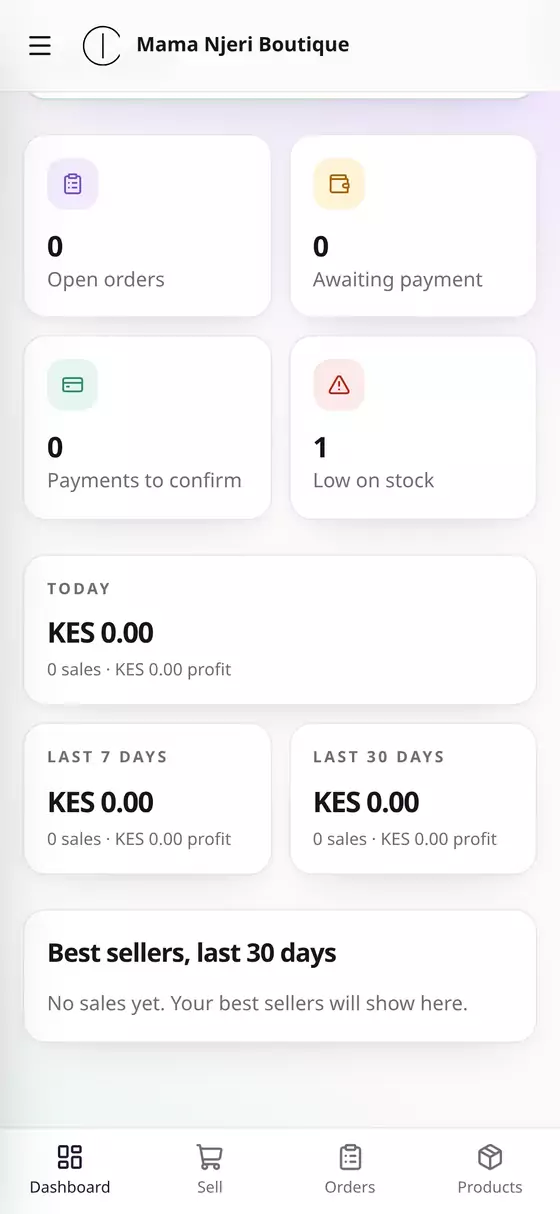
When it falls to that number or below, it's marked Low in red, and it's counted under Low on stock on your dashboard.
Step 5: Check the history
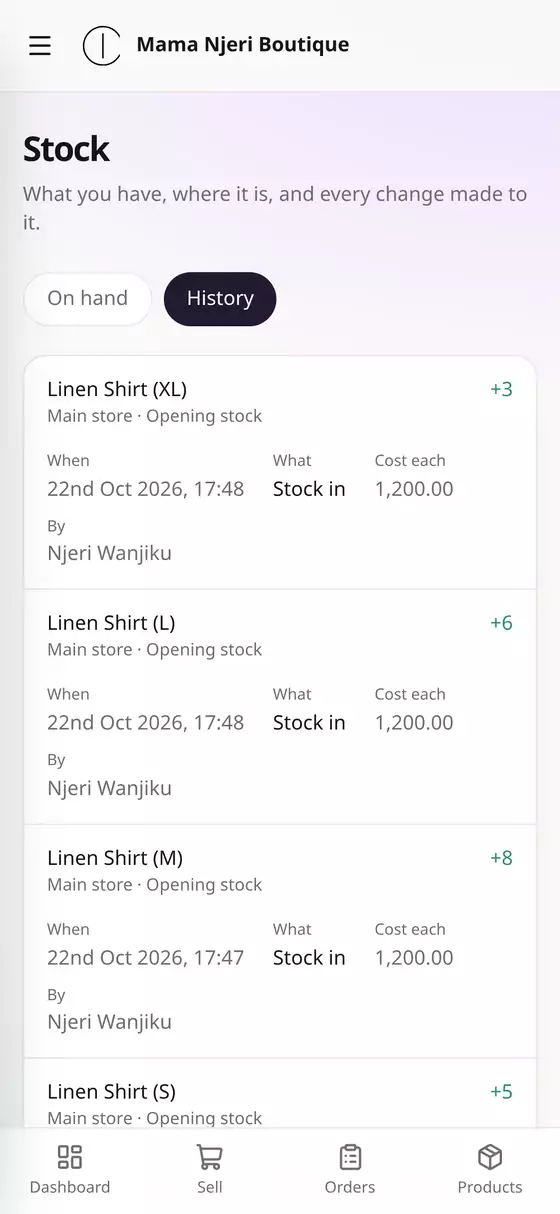
On the Stock page, tap History to see every change to your stock: what it was, how many, the cost of each, and who made it.
Changing stock later
Tap Stock beside any product to:
- Stock in: new stock has arrived.
- Write off: something is damaged, expired or lost.
- Correct: after a stock count, to fix the number. Use a minus for fewer, e.g. -2.
You don't need to change stock when you sell. A sale at the counter takes it off straight away. An online order holds its items (Held) until you fulfil it, and then takes them off.
Lots of products? Bring their stock in from a file
When you import products from Excel (Products → Import), the template has an Opening stock column and a Track stock column. Fill in how many you have on each row and the stock comes in with the products.
Questions
What does the stock cost me? Kwimba uses each product's buying price (set on the product) to value stock and work out your profit.
I have more than one shop or store room. On the Growth plan you can keep stock in up to 3 locations and move it between them. That's covered in guide 11, Multiple locations and moving stock between them.