Guide 9 of 12 · Day to day
Customers and invoices
Sell on credit, see who owes you, and send invoices.
Kwimba keeps a list of your customers, with everything they've bought and anything they still owe you. No more notebook of who owes what. By the end of this guide you'll have sold to a customer on credit, sent them an invoice, and recorded their payment.
Where customers come from
You don't have to add customers one by one. Kwimba adds them for you:
- Online orders: everyone who orders from your shop is added with their name and phone.
- Sales and orders at the counter: add a customer to the sale and they're saved.
- By hand: Customers → Add customer, for anyone else.
Step 1: Sell on credit
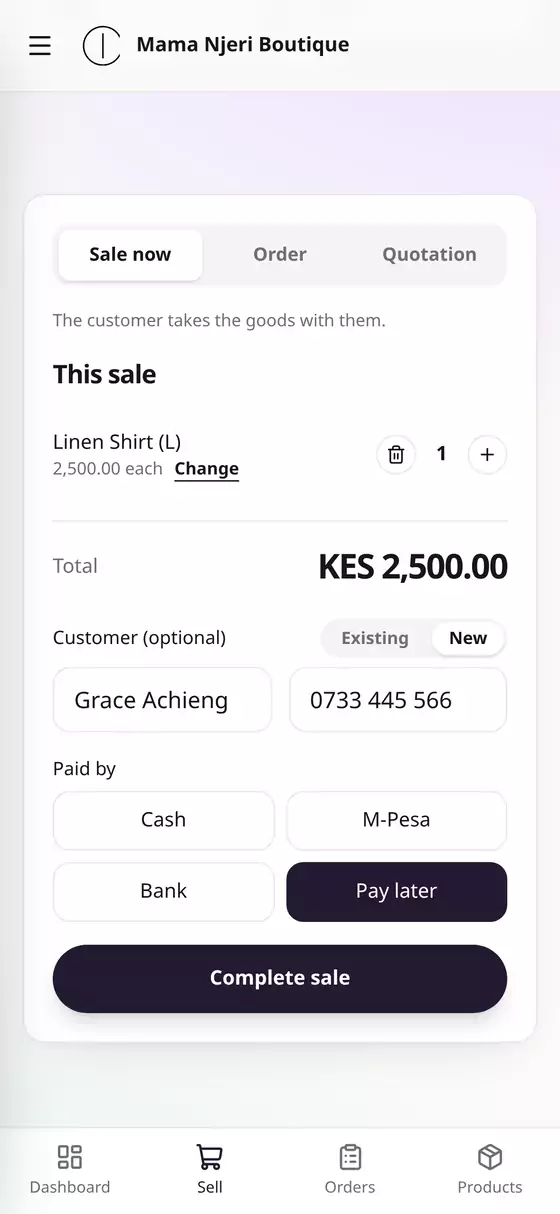
- On Sell, tap what the customer is taking.
- Under Customer, tap New and type their name and phone, or tap Existing and search for them.
- Under Paid by, choose Pay later.
- Tap Complete sale.
The goods leave with the customer, and the sale is saved as unpaid against their name.
Step 2: See who owes you
Open the menu (☰) and tap Customers. Each customer shows their phone, how many orders they've made, what they owe, and when they last ordered.
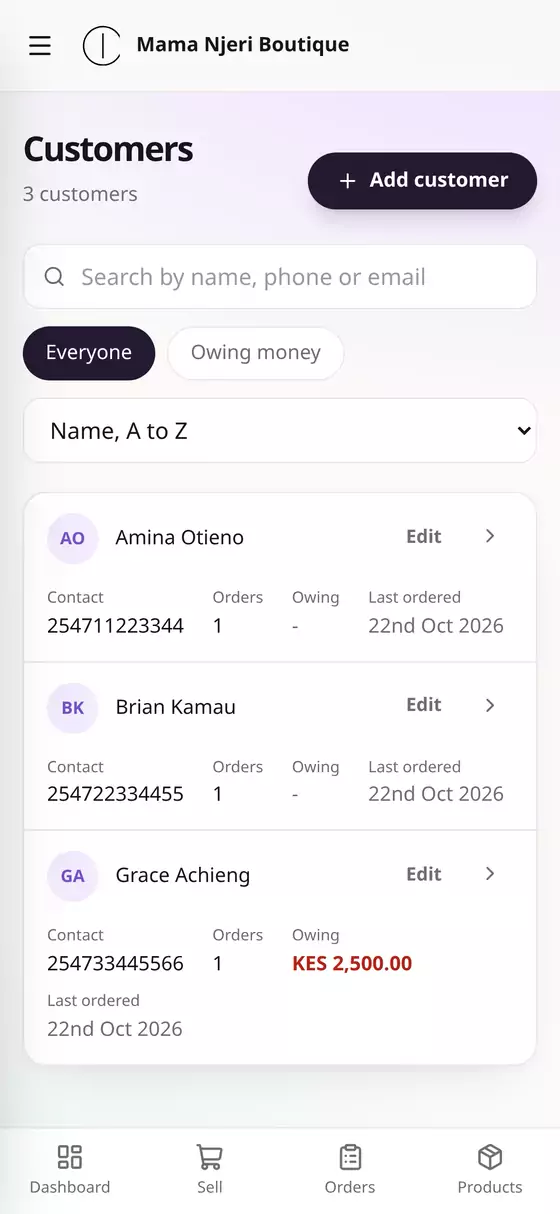
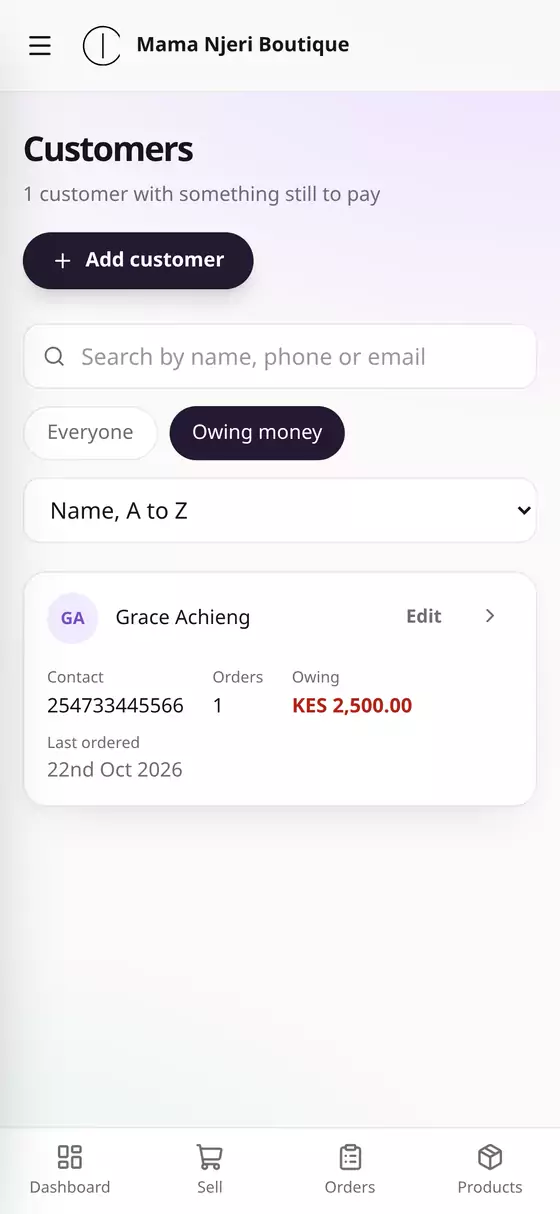
Tap Owing money to see only the people with something still to pay, and how much.
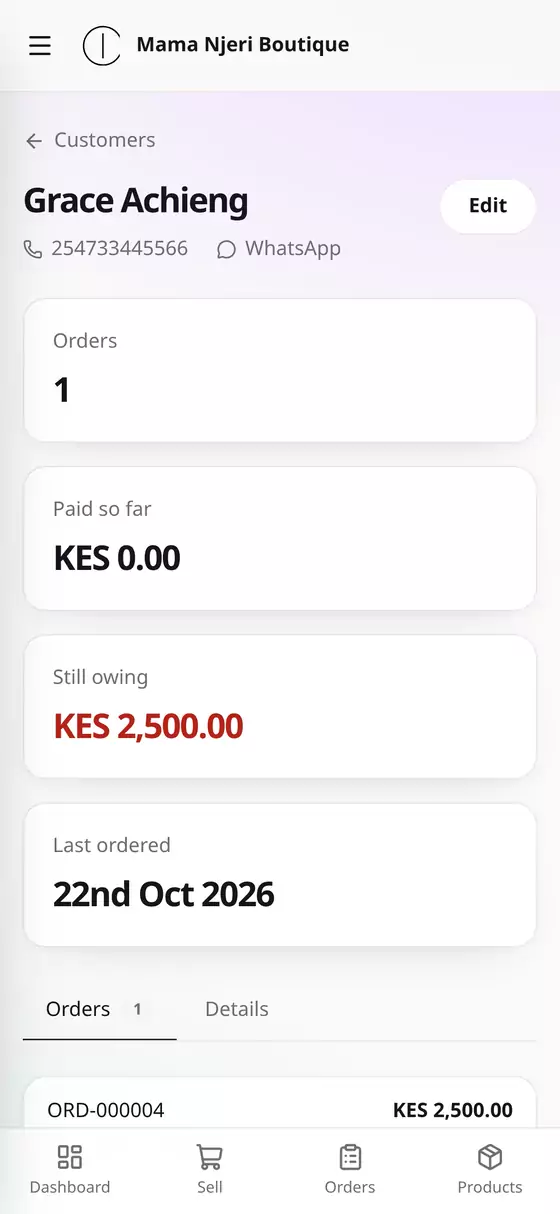
Tap a customer to see their orders, what they've paid so far, what they're still owing, and when they last ordered. You can call them, or tap WhatsApp to message them, straight from here.
Step 3: Send them an invoice
- On the customer's page, tap the order.
- Tap Invoice. Kwimba issues a numbered invoice (e.g. INV-000001) and downloads it as a PDF.
- Send the PDF on WhatsApp or by email.
The invoice carries your shop's name and contacts, the customer, what they bought, the total, what's been paid and the balance due.
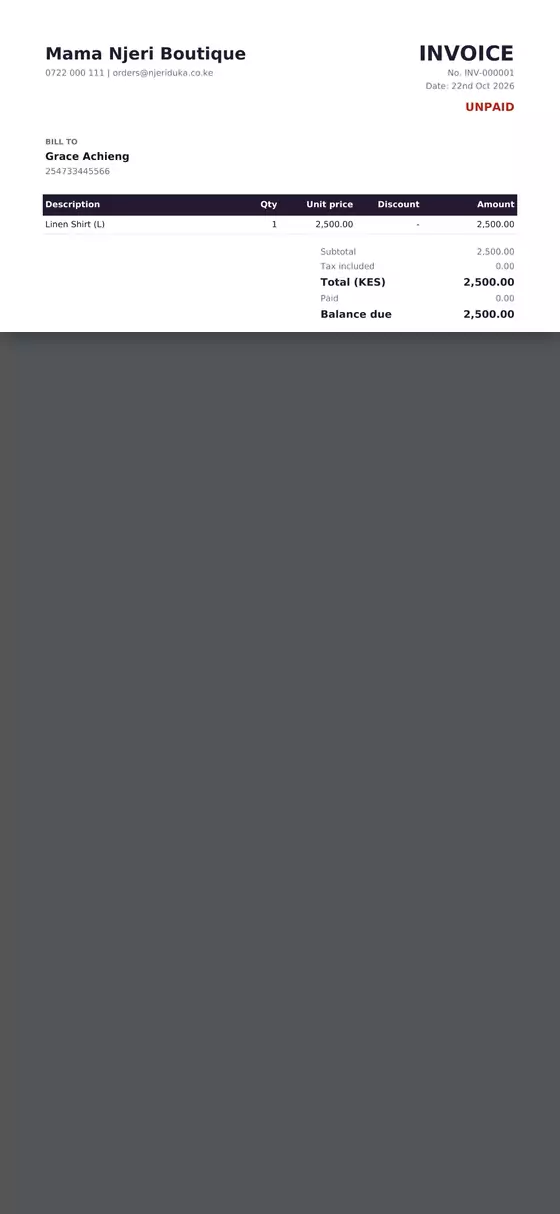
Want your KRA PIN or bank details on it? Add them under Settings → Legal and tax.
Step 4: Record their payment
When they pay:
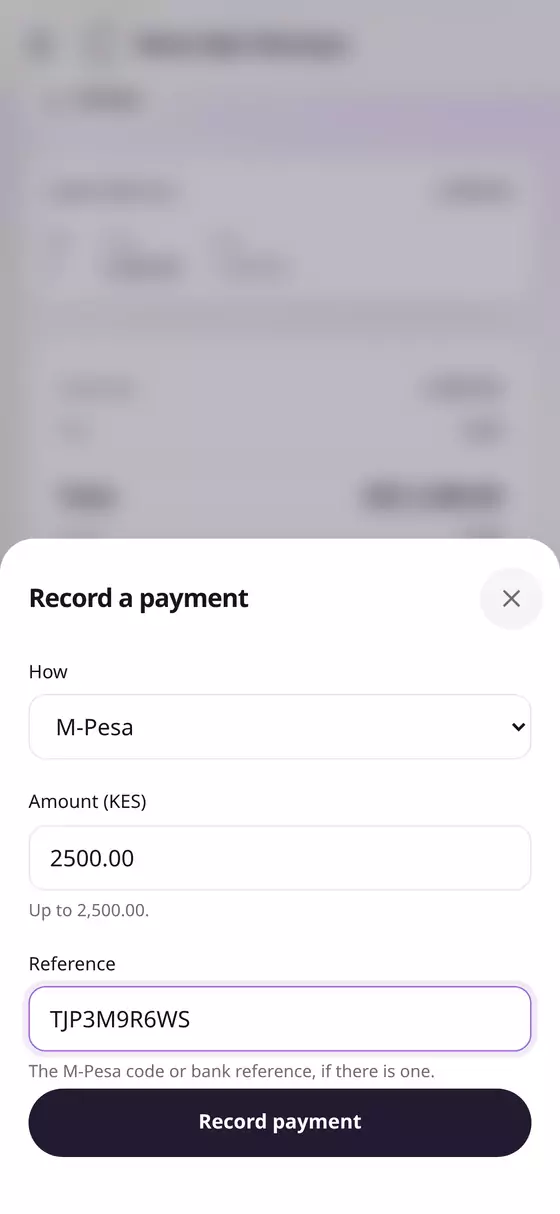
- Open the order and tap Record payment.
- Choose How they paid, e.g. M-Pesa, and add the M-Pesa code under Reference.
- Check the Amount. If they paid only part, change it to what they paid.
- Tap Record payment.
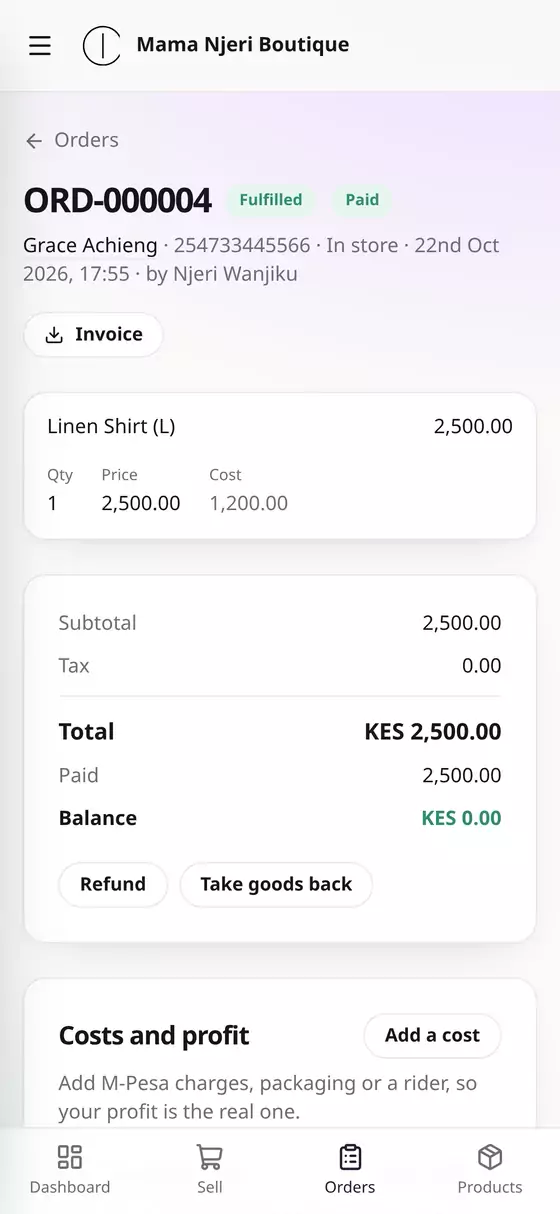
The order is now Paid, the balance is KES 0.00, and they drop off Owing money.
All your invoices
Open the menu (☰) and tap Invoices to see every invoice you've issued. Filter by Issued (still owing), Paid or Void, and download any of them again with PDF.
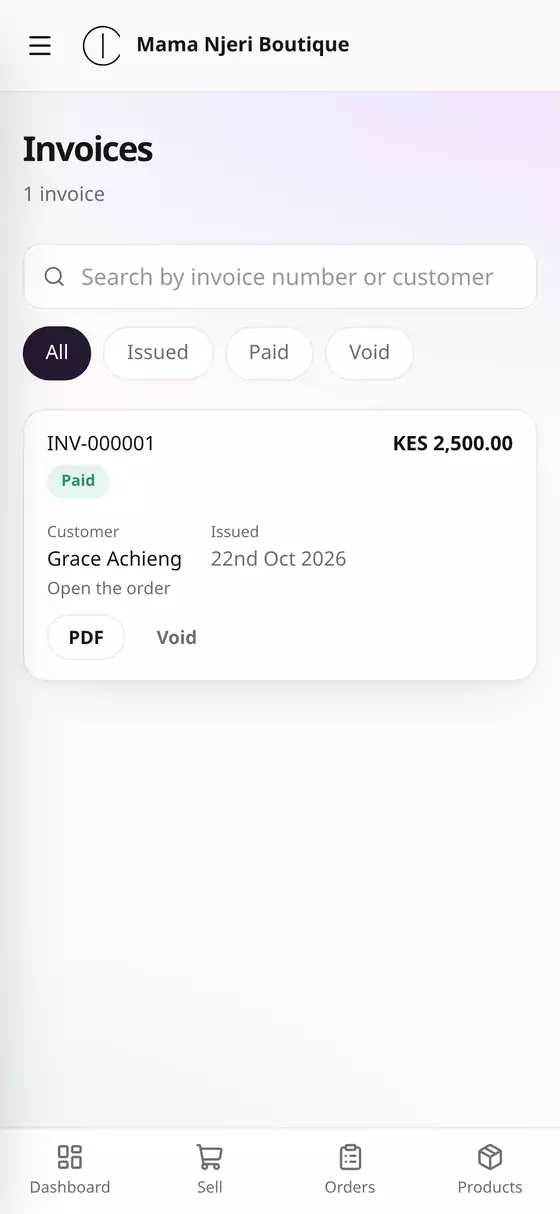
Made a mistake on an invoice? Tap Void. It keeps its number, for your records, and you can issue a fresh one from the order.
Questions
Can I change a customer's details? Yes. Tap Edit on their page, or beside their name in the list.
Do customers have accounts? Shoppers can create one in your online shop to see their past orders. Those customers are marked Has an account.