Guide 8 of 12 · Day to day
Track and fulfil orders
Confirm an order, get paid, and hand it over, step by step.
An online order goes through a few steps: you confirm it, you get paid, and you hand it over. Kwimba keeps track of where every order is, and holds its stock until it's done.
By the end of this guide you'll have taken two online orders all the way through: one delivered and paid in cash at the door, one paid by M-Pesa and collected.
The steps an order goes through
| Status | Means | Stock |
|---|---|---|
| Pending | It's come in, and you haven't accepted it yet. | Held for the order |
| Confirmed | You've accepted it and are getting it ready. | Held for the order |
| Fulfilled | The customer has it, delivered or collected. | Taken off your stock |
| Cancelled / Rejected | It won't go ahead. | Goes back on the shelf |
Separately, each order is Unpaid, Part paid or Paid.
Step 1: Find the orders waiting
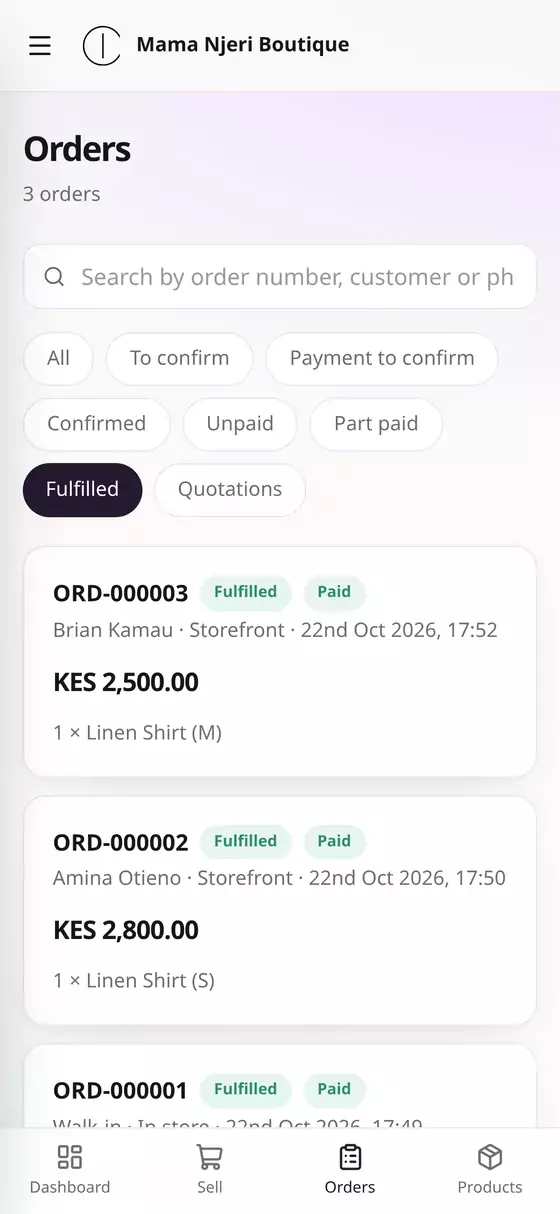
Tap Orders at the bottom of the screen. The filters at the top narrow the list:
- To confirm: new orders you haven't accepted yet
- Payment to confirm: shoppers who sent an M-Pesa code for you to check (guide 6)
- Unpaid and Part paid: money still owed
- Fulfilled: done
Search by order number, customer name or phone.
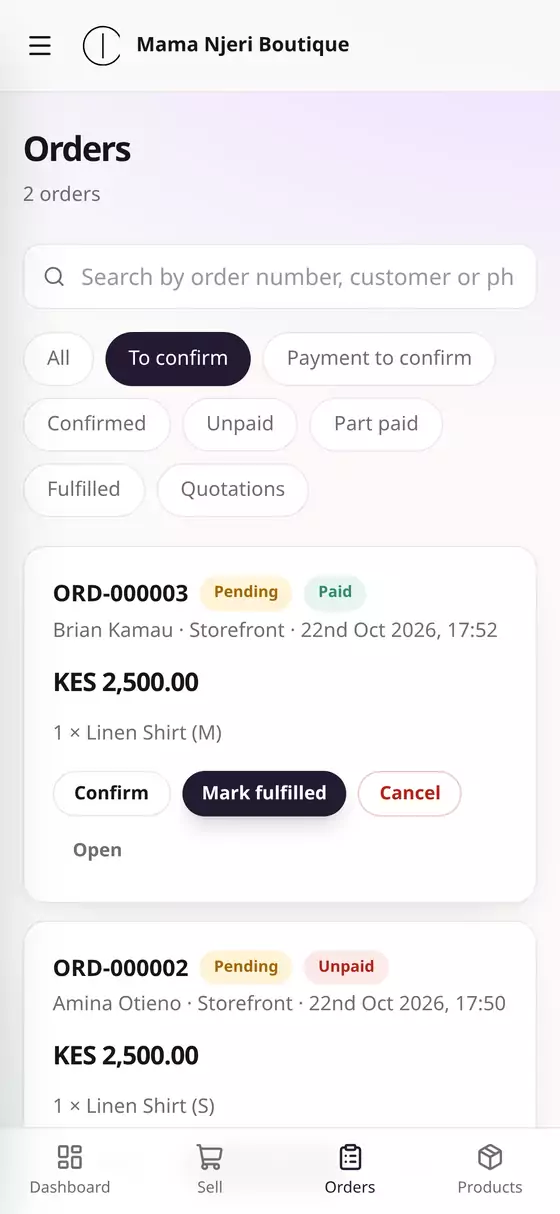
Step 2: Check it and confirm it
Tap an order to open it. You'll see what they ordered, who they are and their phone number, whether it's for delivery or collection, and what they owe.
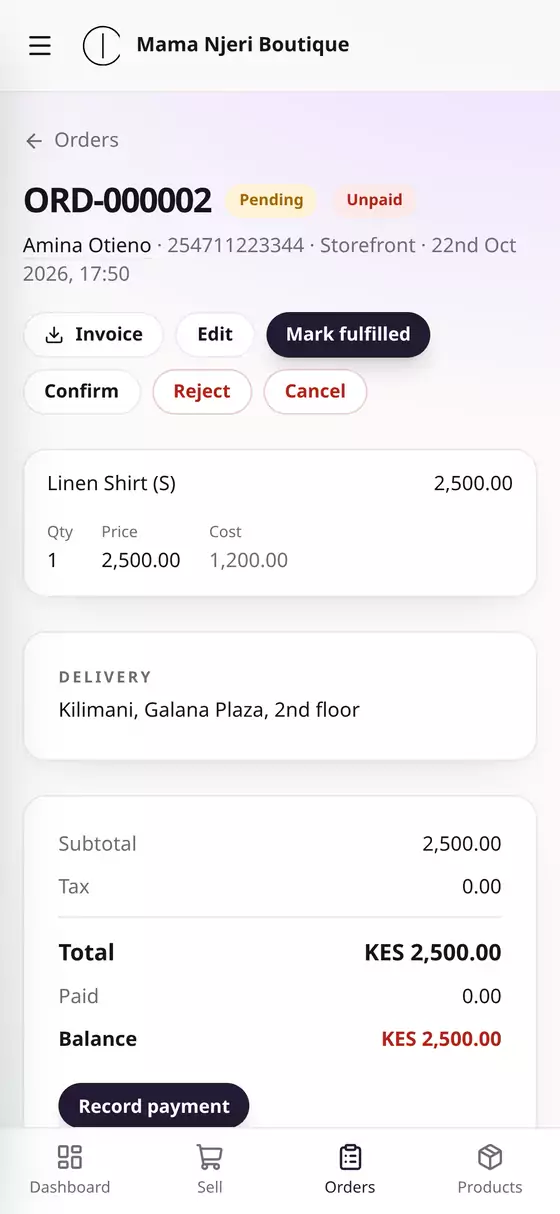
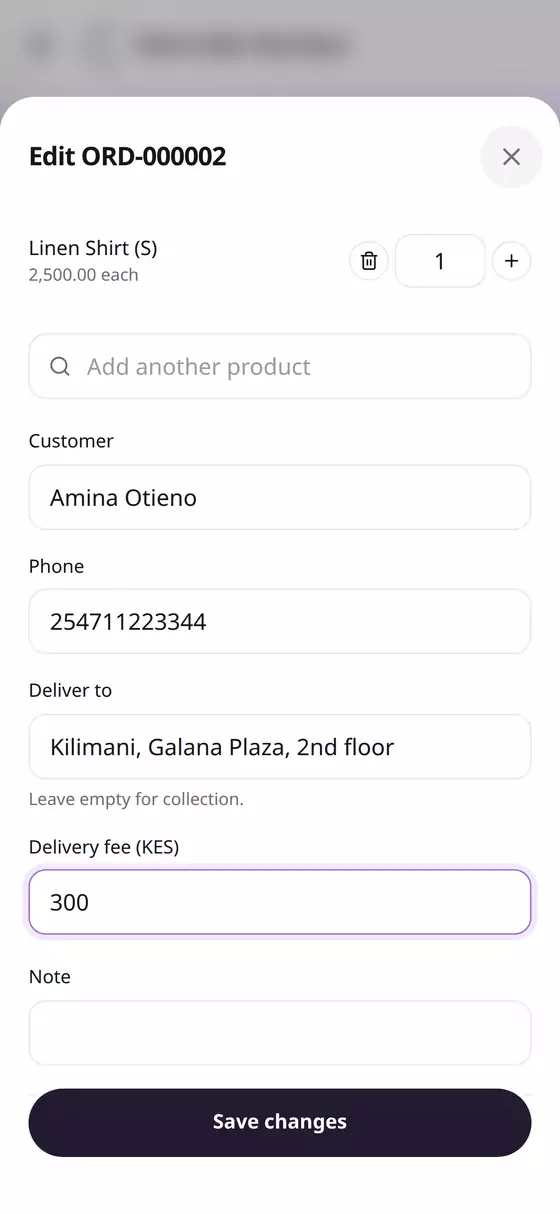
Need to change something first? While an order is Pending you can tap Edit to:
- add the Delivery fee, if your shop doesn't have a set one
- change the quantities, or add or remove products
- correct the customer's name, phone or address
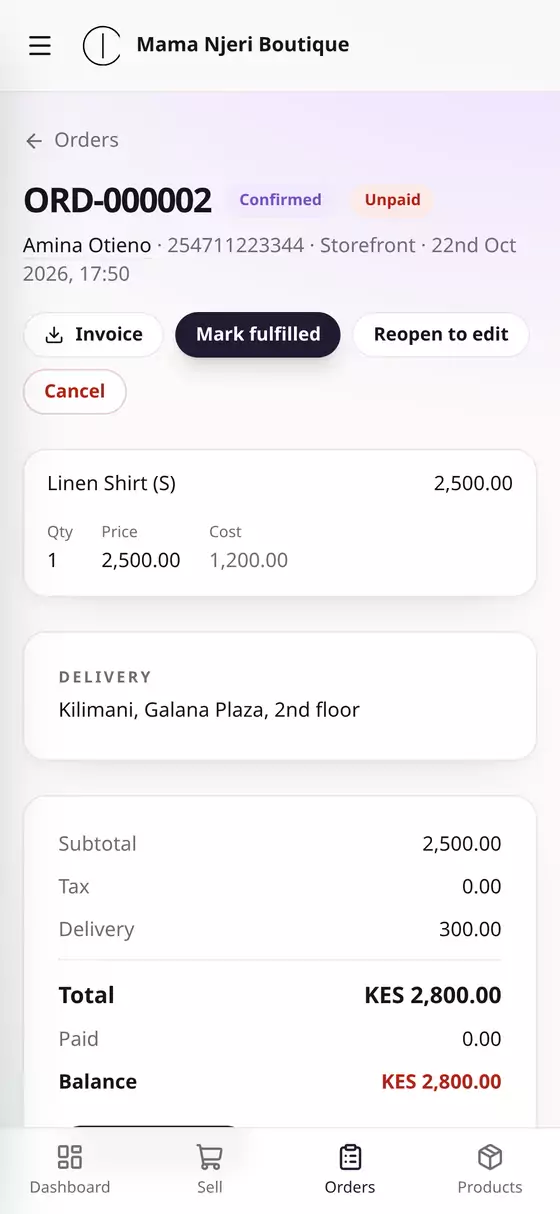
Then tap Confirm. The order is now Confirmed. To change it again after that, tap Reopen to edit.
Can't do the order? Tap Reject (or Cancel). Its stock goes back on the shelf. This can't be undone.
Step 3: Get paid
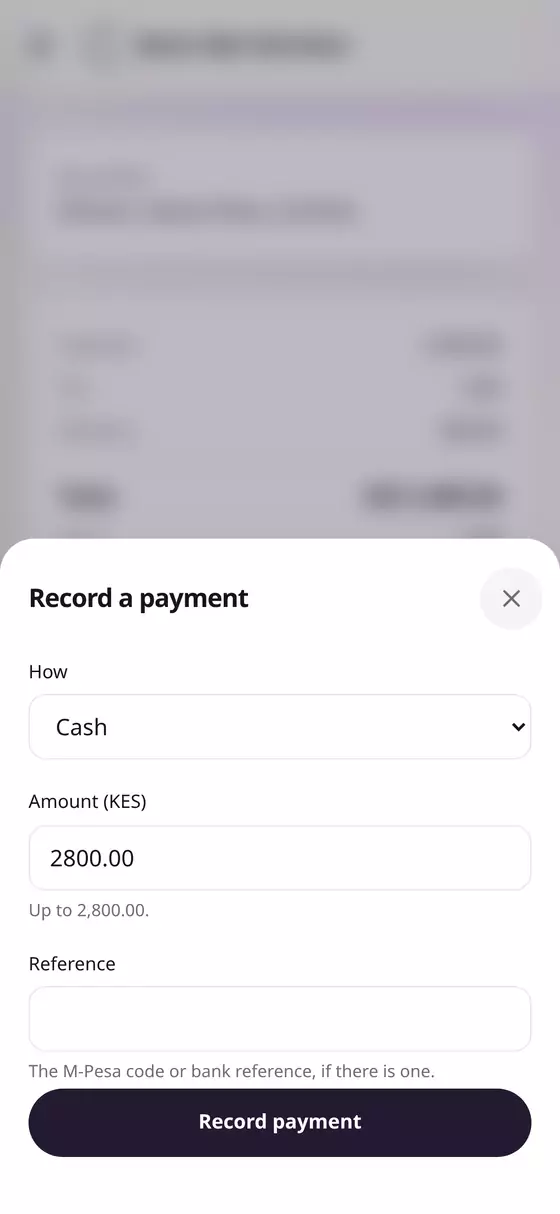
If the customer pays on delivery or when they collect:
- Tap Record payment.
- Choose How: Cash, M-Pesa, Bank or Other. For M-Pesa, add the code under Reference.
- The Amount is filled in with what's owed. Change it if they paid only part.
- Tap Record payment.
Paid by M-Pesa from the shop already? Then it's paid, once you've confirmed the code arrived (guide 6).
Step 4: Hand it over
Once it's delivered or collected, tap Mark fulfilled. The order is done, and its stock comes off your shelf.
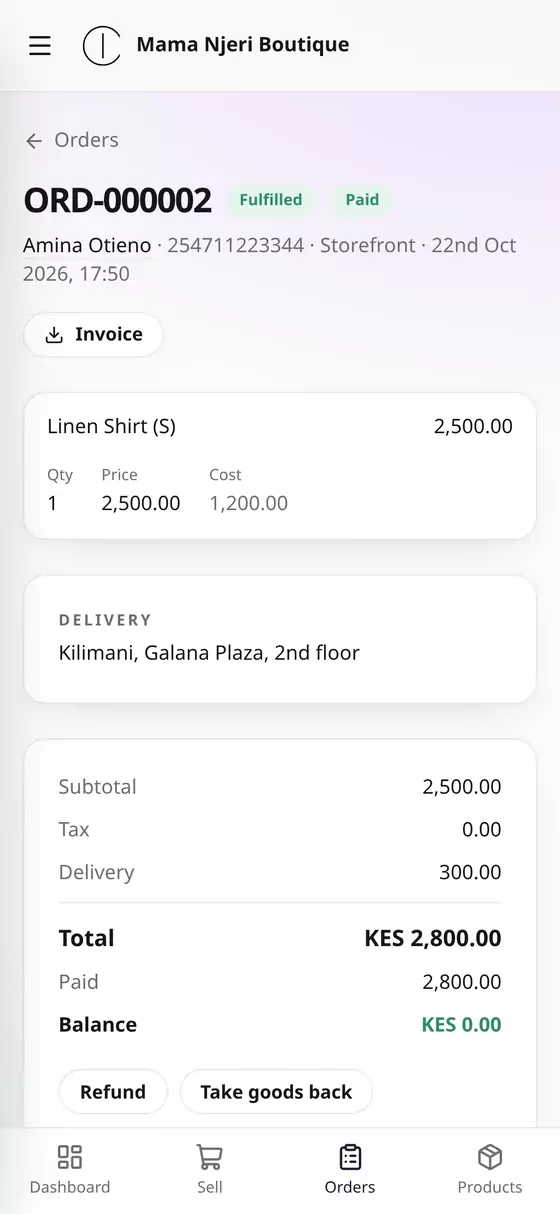
For a quick one, an order that's already paid and being collected now, tap Mark fulfilled straight from the list.
What your customer sees
Shoppers can follow their order on its page in your shop, or look it up with Track an order (at the bottom of every shop page) using the order number and their phone number. It shows where the order is, what they've paid and what's still owed. If they gave their email, they're also emailed when the order is received, and again once it's confirmed and paid.
Questions
A customer wants to return something. Open the order and tap Take goods back. Choose what came back and whether it goes back into stock, and record any money you give back.
Can I send an invoice for an order? Yes. Tap Invoice on the order to download it as a PDF (guide 9).
What about orders that come in on WhatsApp or by phone? Add them yourself: on Sell, choose the Order tab and set Came in by to WhatsApp, Phone call or another channel. They then go through the same steps.