Guide 10 of 12 · Day to day
Reading your reports
Your takings, your real profit, and what is and isn’t selling.
Kwimba works out your takings and your profit for you, from every sale at the counter and every order online. This guide shows where to find the numbers and what they mean: how the business is doing, what's selling, and what isn't.
Step 1: Your dashboard, at a glance
Your dashboard opens with what needs doing today:
- Open orders: online and phone orders waiting to be confirmed or handed over
- Awaiting payment: orders not yet fully paid
- Payments to confirm: M-Pesa codes from shoppers to check
- Low on stock: products at or below their warning level
Below them are your takings:
- Today, Last 7 days and Last 30 days: how much you sold, how many sales, and the profit
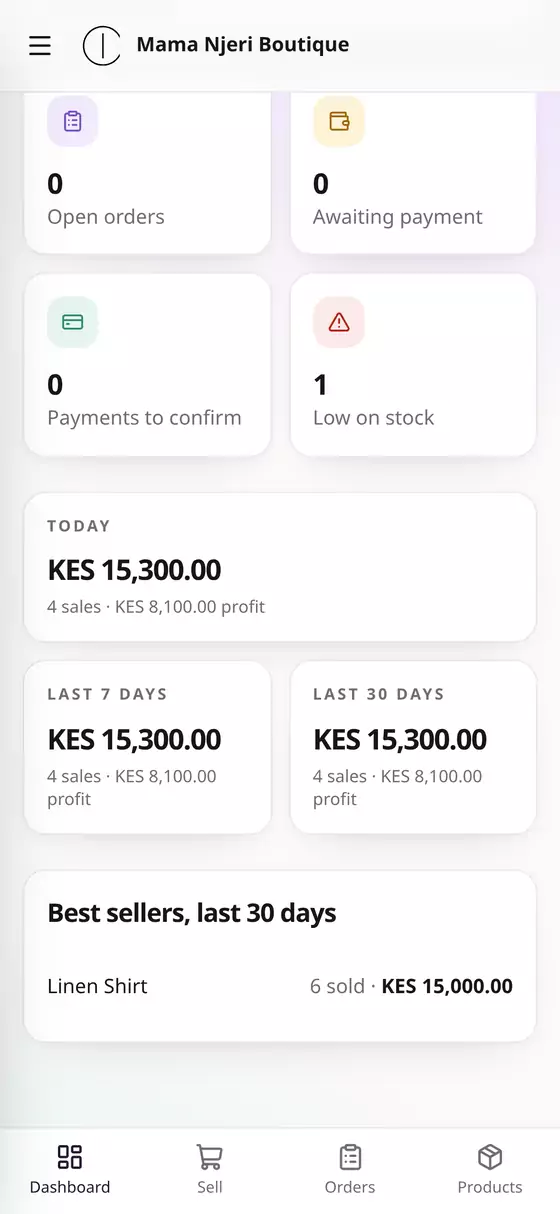
- Best sellers, last 30 days: your top products, how many you sold and what they brought in. These are the ones never to run out of.
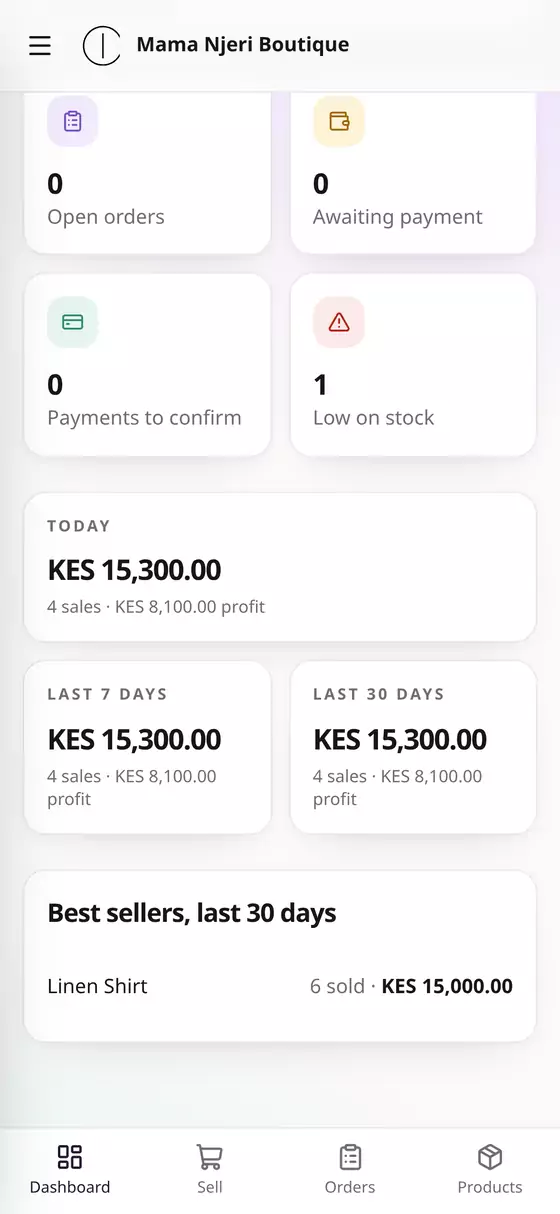
Profit is what you sold for, less what the goods cost you (each product's buying price) and any extra costs on the order. If a product has no buying price, Kwimba can't work out its profit, so add buying prices to all your products (guide 2).
Step 2: Make each order's profit the real one
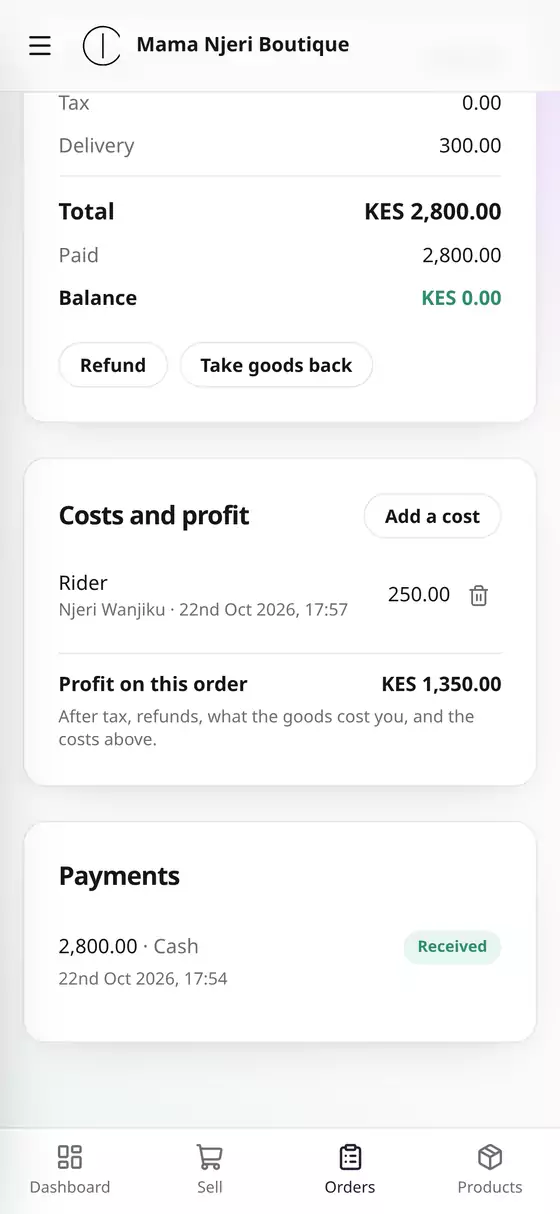
Some orders cost you more than the goods: a rider, packaging, M-Pesa charges. Add these to the order, and your profit figures will be the real ones.
- Open the order and scroll to Costs and profit.
- Tap Add a cost.
- Choose what for, e.g. Rider, or type your own.
- Type the Amount, e.g. 250, and tap Add cost.
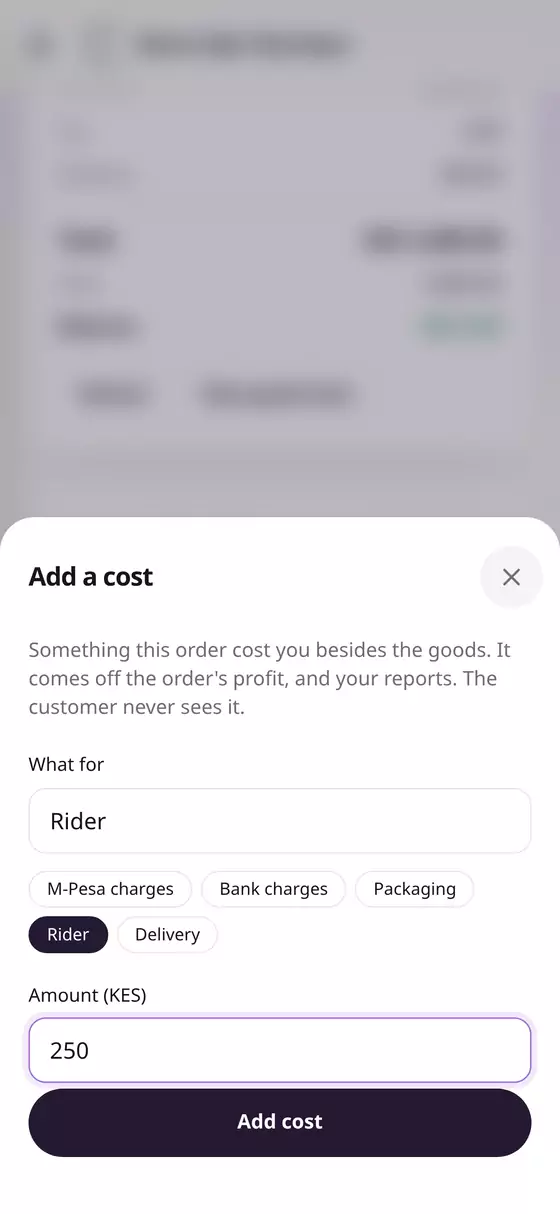
Profit on this order drops by that amount, and so does the profit in your reports. The customer never sees these costs.
Step 3: The sales report
Open the menu (☰) and tap Reports.
- Choose a period: Last 7 days, Last 30 days, This month or This year, or pick your own dates under From and To.
- Read the totals:
- Revenue: everything you sold in the period
- Sales: how many sales and orders, and the average for each
- Profit: revenue less what the goods cost you and any other order costs
- Best day: your biggest day, and what you took
- Scroll down for each day: sales, revenue and profit, with the latest day first.
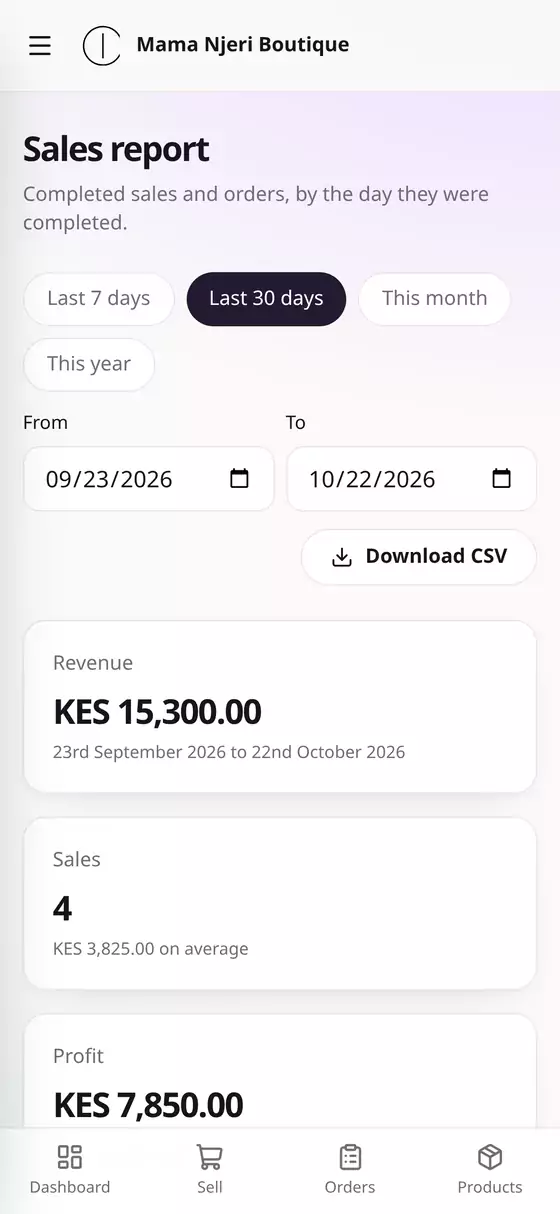
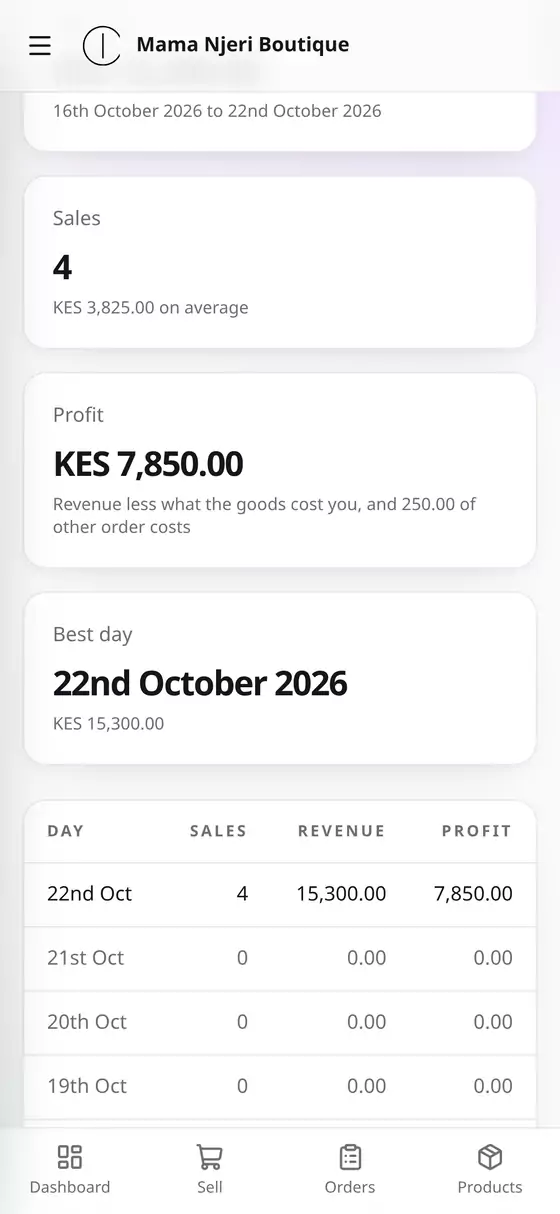
Download CSV saves the figures as a spreadsheet, for your accountant or for Excel.
A sale counts on the day it's completed: straight away at the counter, or when you mark an online order Fulfilled. Orders still open aren't in the report yet.
Step 4: What's selling, and what's not
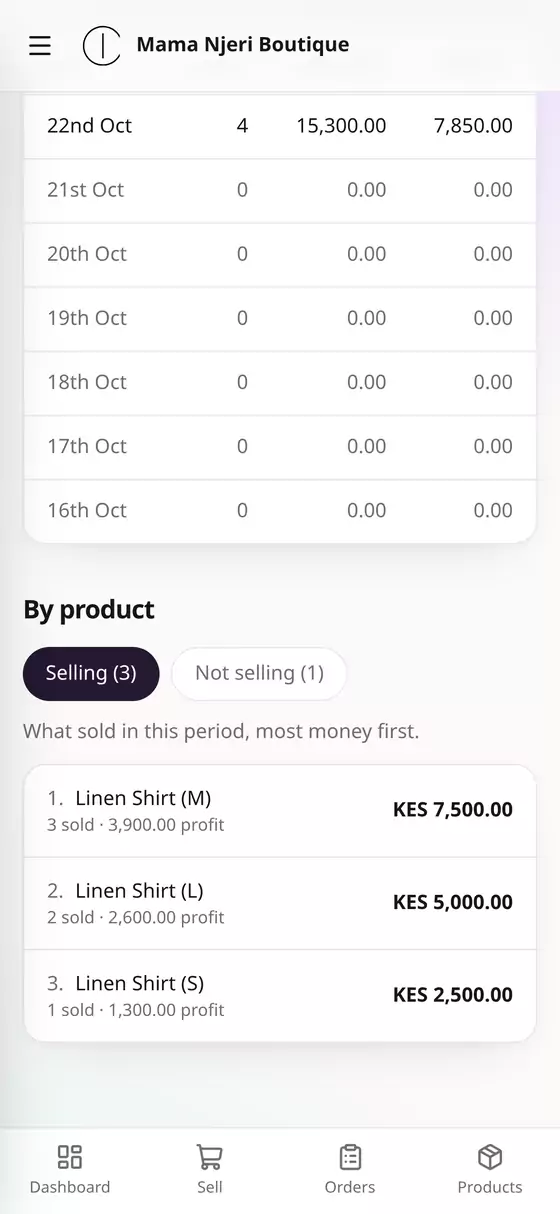
Under the daily figures, By product shows the same period product by product:
- Selling: everything that sold, most money first, with how many sold and the profit on each.
- Not selling: everything that was for sale the whole period and didn't sell once, with how many are still in stock, when it last sold, and what that stock cost you. The most money sitting on your shelf comes first. That's what to discount, bundle or stop reordering.
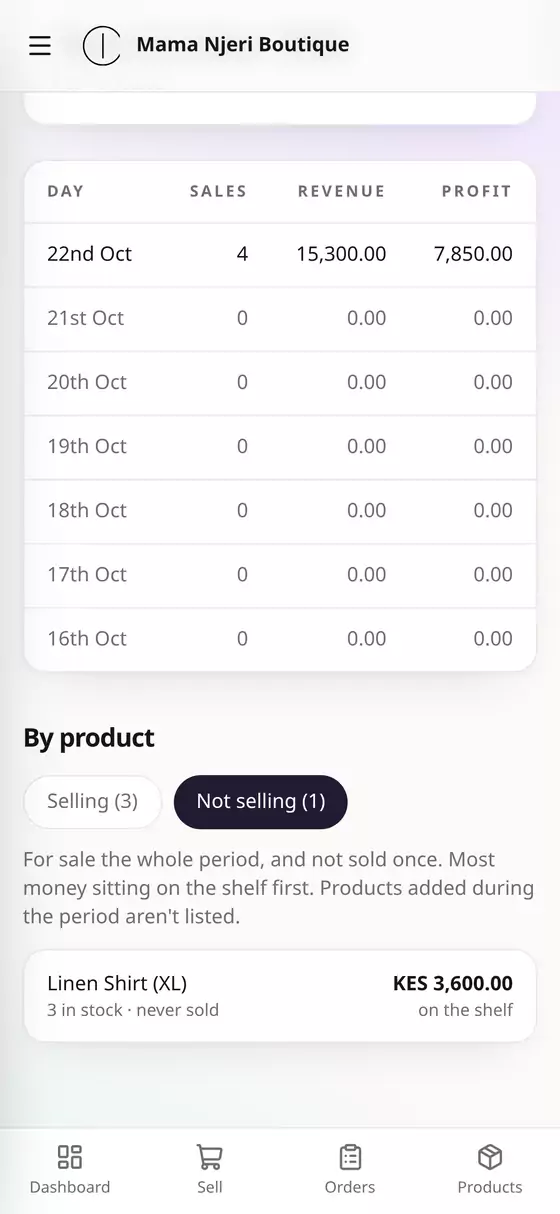
Each size or colour is listed on its own, so you can see when the XL isn't moving even though the shirt is. Products added during the period aren't listed under Not selling, since they haven't had the whole period to sell.
Try a longer period (Last 30 days or This month) for Not selling. Almost anything can go a few days without a sale.
Questions
Can my staff see the reports? Only the Owner, Admins and Read only people. Sales and Stock staff never see takings or profit (guide 7).
I have more than one location. Choose one at the top of the report to see just that branch, or leave it on all of them (guide 11).