Guide 11 of 12 · Growing
Multiple locations and moving stock between them
Run more than one shop or store room, each with its own stock.
Got a second shop, a branch or a store room? Kwimba keeps each location's stock separately, so you always know what's where. You can move stock between them, sell from any of them, and tie staff to the one they work at.
By the end of this guide you'll have added a second branch, moved stock to it, sold from it, and tied a salesperson to it.
Plans: Starter has 1 location, Growth up to 3, and Ultra as many as you need.
Step 1: Add the location
- Open the menu (☰) and tap Store locations.
- Your first location, Main store, is already there, marked Main.
- Under New location, type the name, e.g. Westlands branch, and tap Add.
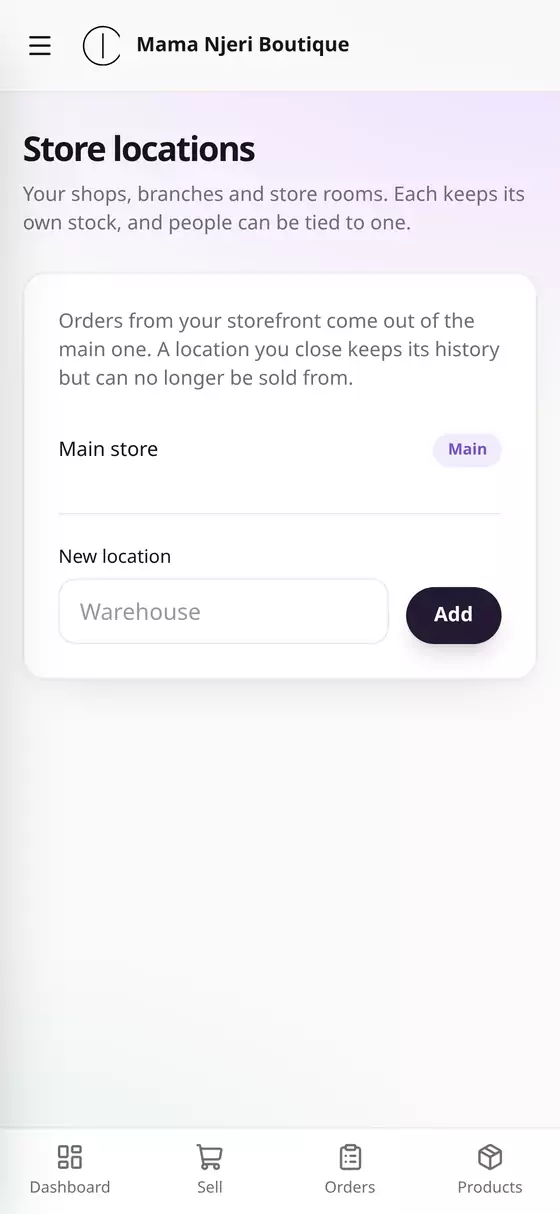
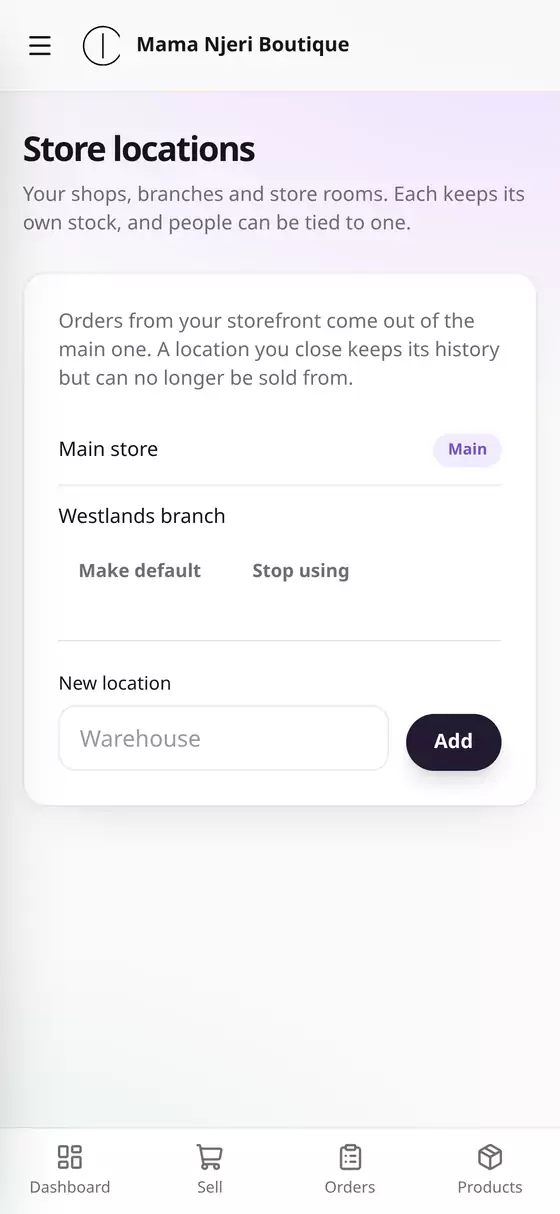
Good to know: Online orders come out of your main location's stock. To change which one that is, tap Make default beside another location. A location you stop using keeps its history, but can no longer be sold from.
Step 2: Move stock to it
- Open the menu (☰) and tap Stock.
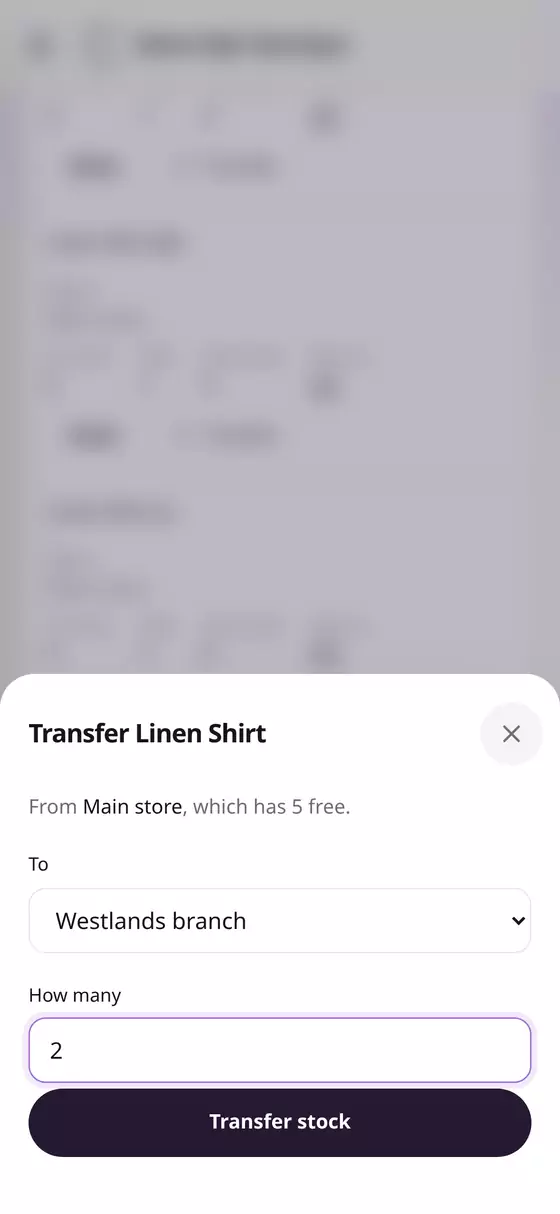
- Find the product and size in the Main store, e.g. Linen Shirt (M), and tap Transfer.
- Choose where it's going under To, e.g. Westlands branch.
- Type How many, e.g. 2, and tap Transfer stock.
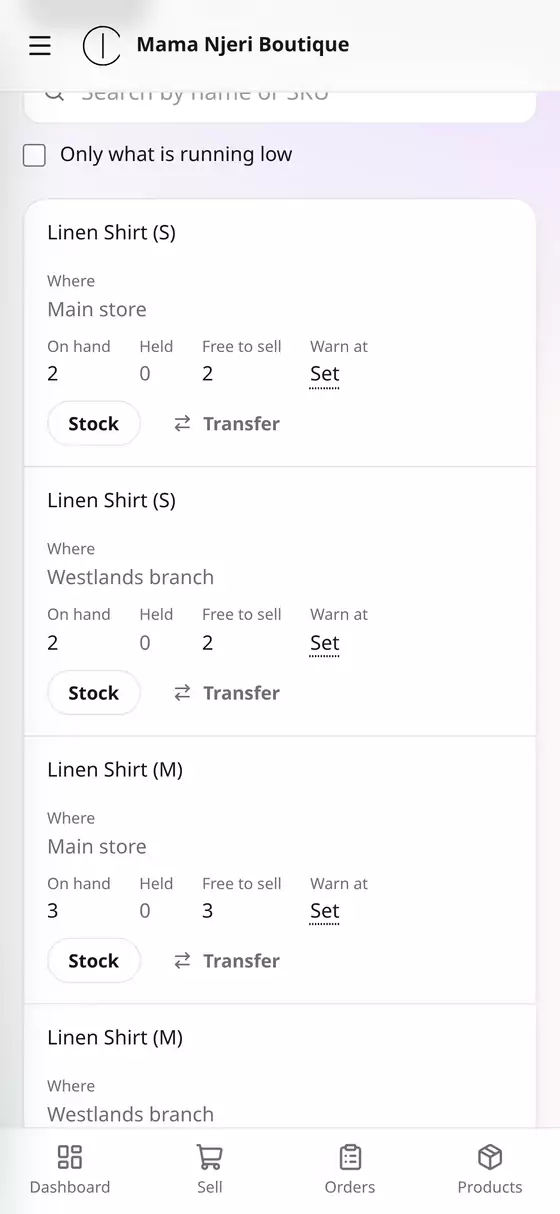
The Stock page now lists each product once for every place it's kept, with what's on hand at each.
New stock straight to a branch? When you tap Stock → Stock in on a product, choose the branch under Where.
Step 3: Sell from the branch
On Sell, choose the location at the top, e.g. Westlands branch. The tiles show what's left at that branch, and the sale comes off its stock.
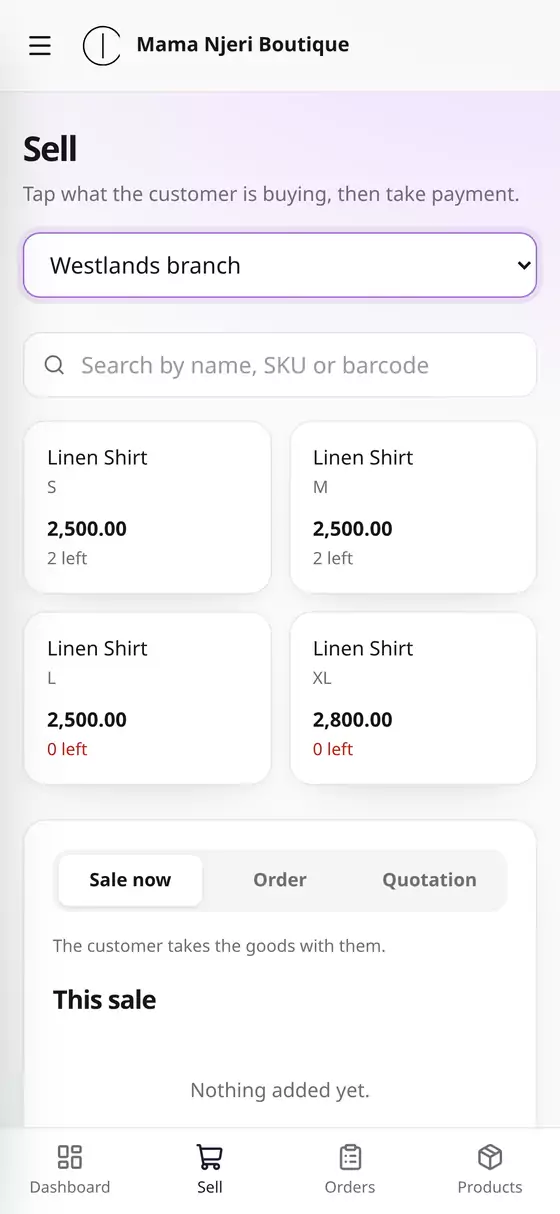
The dashboard and Reports have the same picker, so you can see each branch's takings on their own, or all of them together.
Step 4: Tie staff to their branch
- Open the menu (☰), tap Settings, then Team and access.
- Beside the person, change All locations to their branch, e.g. Westlands branch.
There's no Save button: the change is saved the moment you pick it, and a note at the top confirms it, e.g. "Saved. Wanjiru Muthoni now works at Westlands branch only."
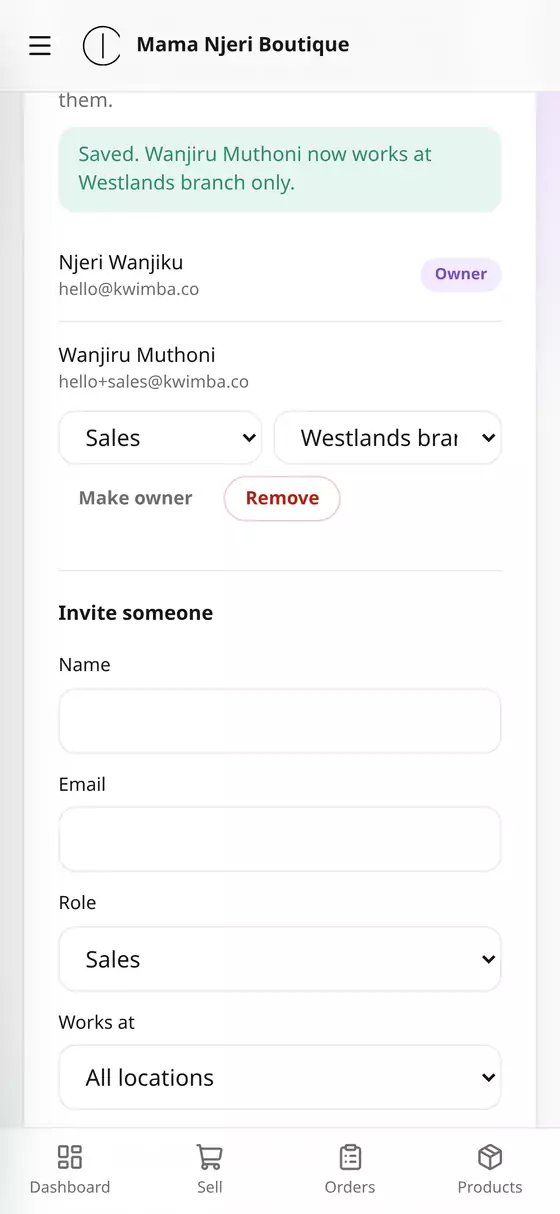
From now on, they sell from that branch and see only its stock and orders, with no picker to switch. When you invite someone new, choose their branch under Works at.
Questions
Can I see which branch sold what? Yes. Every sale and order records its location. Pick a branch on the dashboard or in Reports to see its figures.
Can a shopper choose which branch to collect from? Not yet. Online orders are taken from the main location.