Guide 7 of 12 · Day to day
Add staff and choose what each one can see
Give everyone their own login, and keep your costs and takings private.
Everyone who works in your shop can have their own Kwimba login: no shared passwords, and every sale and stock change recorded under their name. You decide what each person can see and do by giving them a role.
By the end of this guide you'll have invited a salesperson, and you'll know what they can and can't see.
The roles
| Role | Can | Can't see |
|---|---|---|
| Owner | Everything. Only the owner can hand the store to someone else. | — |
| Admin | Everything, including settings, staff and billing. | — |
| Sales | Sell, take payments, look after customers and orders, issue invoices. | Buying prices, profit, takings and reports |
| Stock | Add and edit products, manage stock, see buying prices. | Orders, customers, takings |
| Read only | See everything. Good for an accountant or a business partner. | Can't change anything |
How many people you can have depends on your plan: Starter is for 1 person, Growth up to 8, Ultra up to 100.
Step 1: Invite them
- Open the menu (☰), tap Settings, then Team and access.
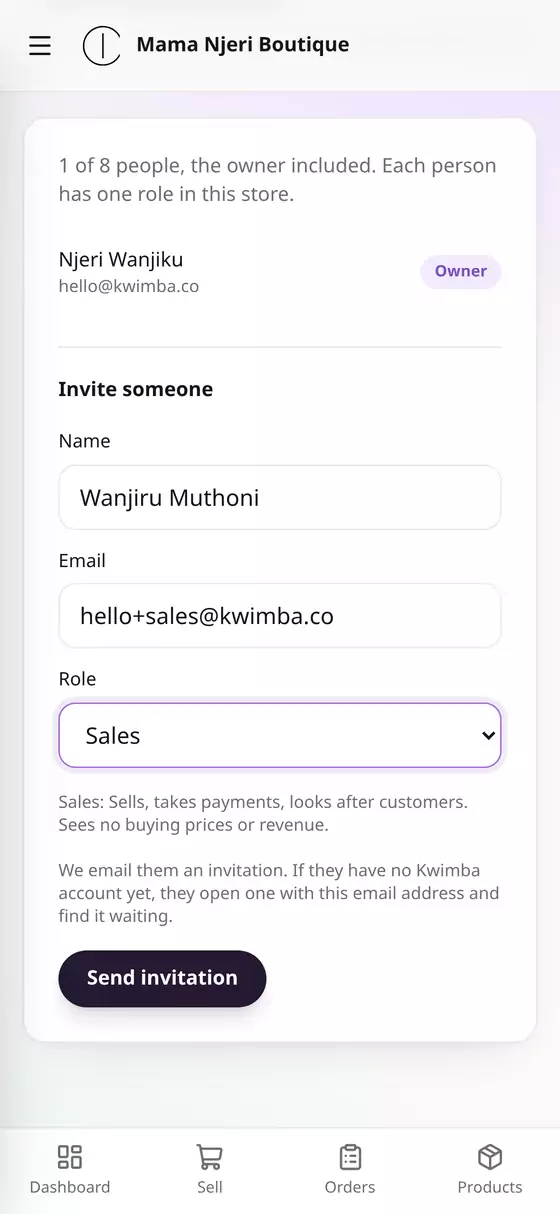
- Under Invite someone, fill in their Name and Email.
- Choose their Role, e.g. Sales. A line under it reminds you what that role can do.
- Tap Send invitation.
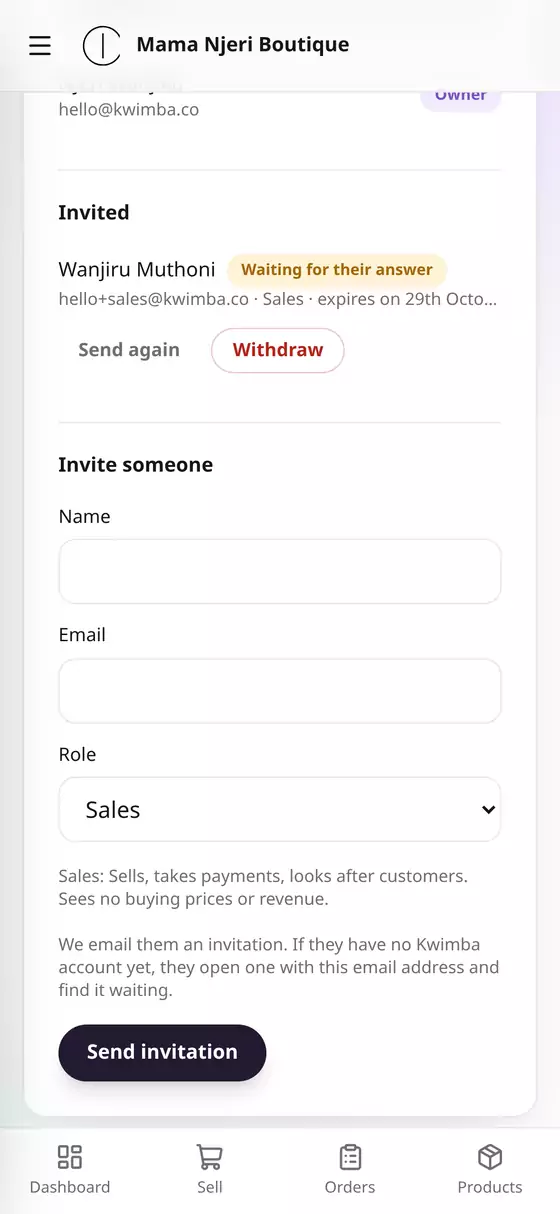
They're listed under Invited as Waiting for their answer until they accept. The invitation expires after a week. You can Send again or Withdraw it.
Step 2: They accept
They get an email from Kwimba. On their own phone they:
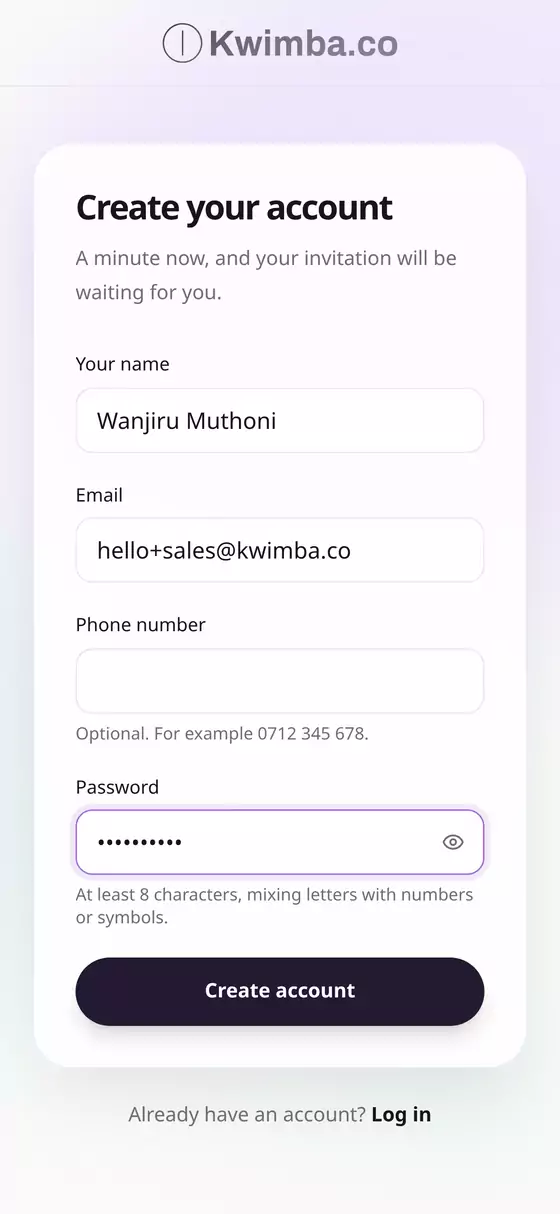
- Tap the link in the email. It opens Create your account with their email filled in.
- Add their name and a password, then the 6-digit code Kwimba emails them.
- Tap Accept on the invitation.

Already have a Kwimba account? They just log in, and the invitation is waiting for them.
Step 3: What they see
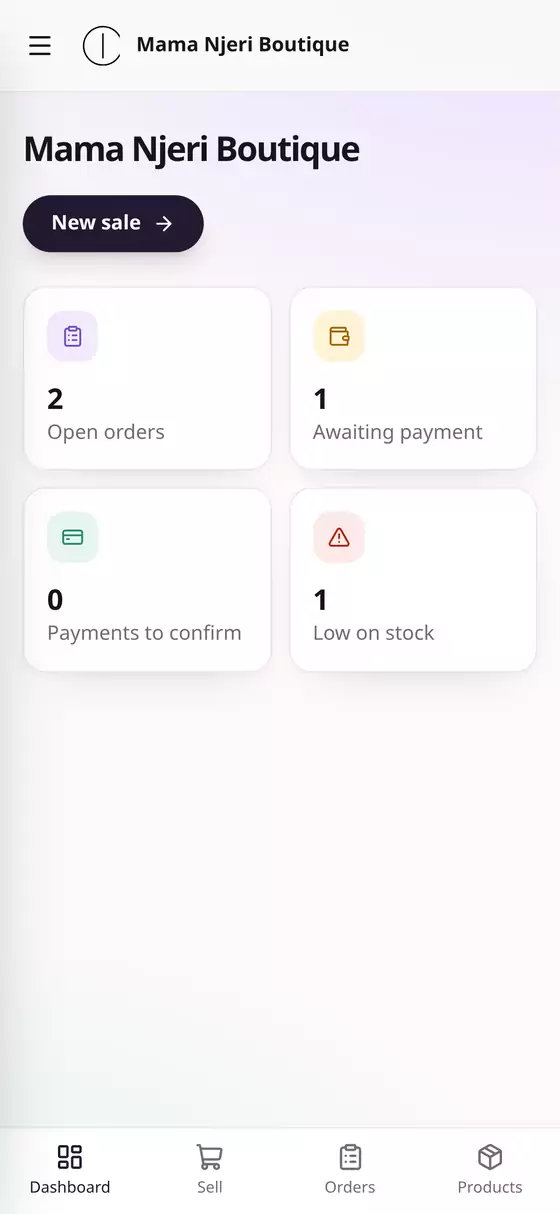
They're now in your store, seeing only what their role allows. A Sales person:
- sees the order counts on the dashboard, but not your takings or profit
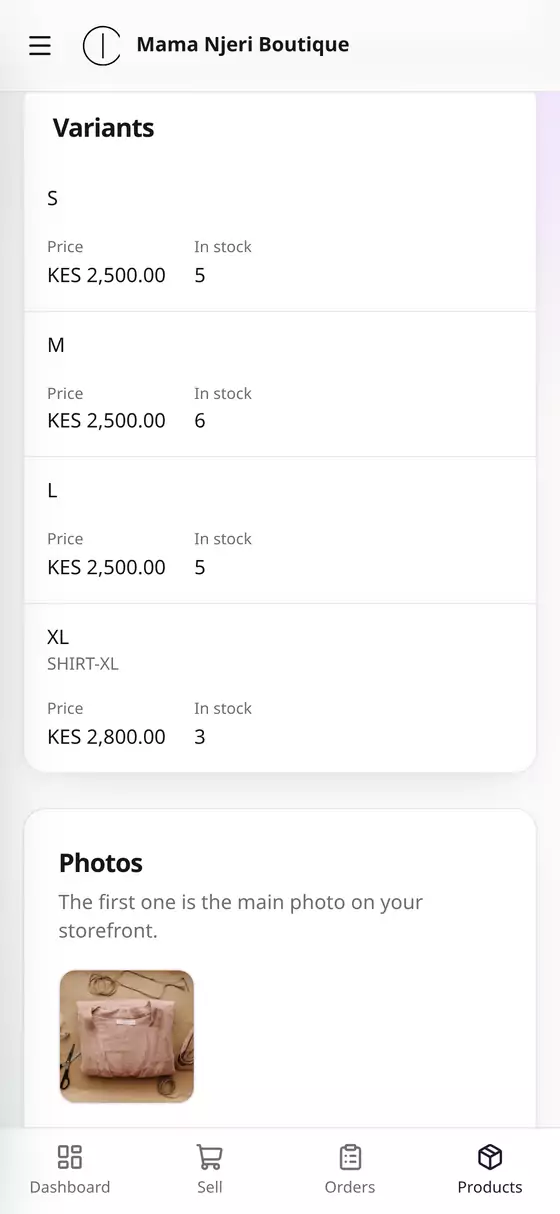
- sees prices and stock, but not what things cost you
- can sell, take payments and handle orders, but can't edit products or stock
Changing or removing someone
Under Settings → Team and access:
- Change a role: pick a new one from the list beside their name. There's no Save button: it's saved and takes effect the moment you pick it, and a note confirms it.
- Remove: they lose access to your store immediately. Their past sales stay on record under their name.
- Make owner (owner only): hands the store to them. You stay on as an admin.
Questions
Can I limit someone to one branch? Yes, once you have more than one location. Choose their location under Works at when you invite them, or beside their name later, and they see only that branch's stock and orders (guide 11).
I'm on Starter and can't invite anyone. Starter is for one person. Move to Growth from Billing to add up to 8 people.