Guide 6 of 12 · Selling online
How M-Pesa payments reach you
Get paid straight to your own till or paybill, and check the money arrived.
Money from your customers always goes straight to your own till or paybill. It never passes through Kwimba. This guide shows the two ways to take M-Pesa for online orders, and how to check the money arrived.
| M-Pesa (your till) | M-Pesa prompt | |
|---|---|---|
| How the shopper pays | Pays your till from their phone, then types the M-Pesa code into their order | Gets a payment request on their phone and enters their PIN |
| How you know it arrived | You check your M-Pesa messages and tap It arrived | Kwimba marks the order paid by itself |
| What you need | Your till number | Your own Daraja app from Safaricom |
| Setup time | 1 minute | A few days, waiting on Safaricom |
Most shops start with M-Pesa (your till) and add the prompt later.
Part 1: M-Pesa to your till
Step 1: Switch it on
- Open the menu (☰), tap Settings, then Getting paid.
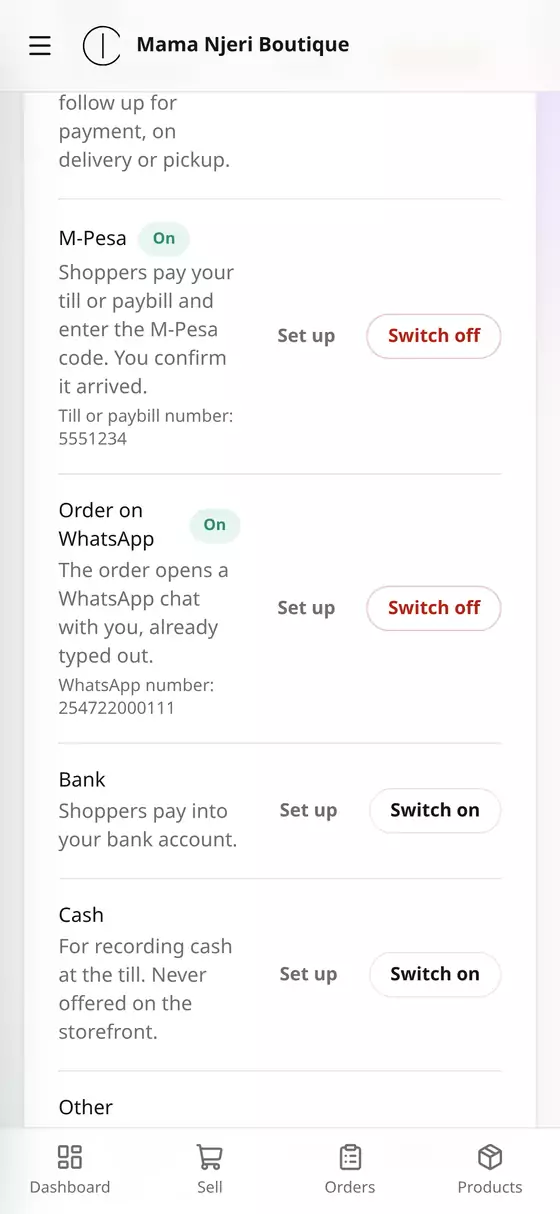
- Beside M-Pesa, tap Switch on.
- Till or paybill number: e.g. 5551234.
- Instructions for the shopper (optional): anything that helps them pay the right place, e.g. "Lipa na M-Pesa, Buy Goods. The till is in the name of MAMA NJERI BOUTIQUE."
- Tap Save and switch on.
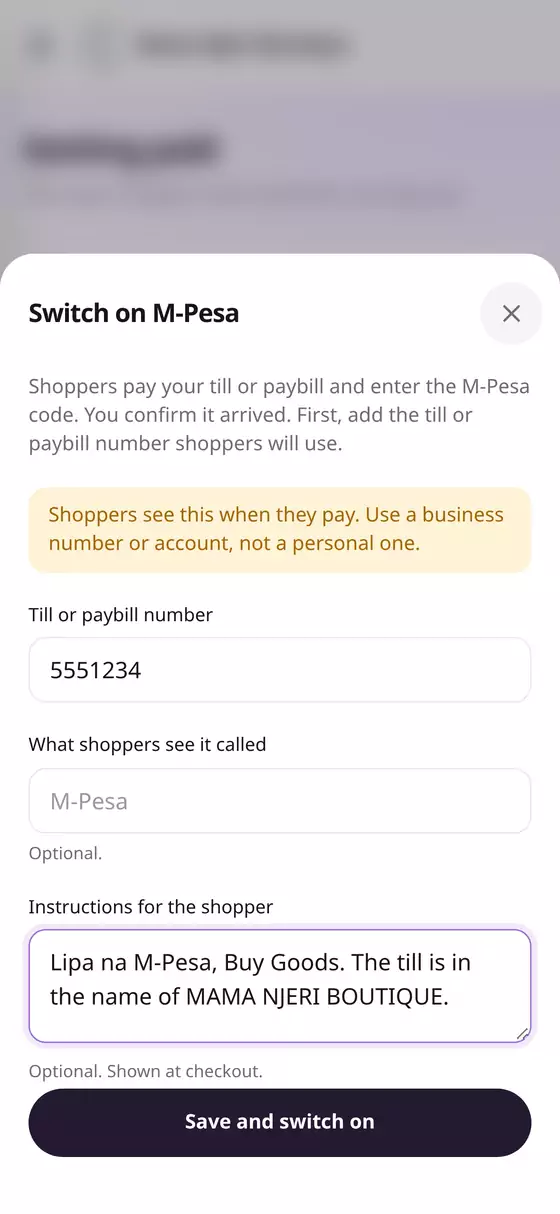
Use your business till, not a personal number. Shoppers see it when they pay.
M-Pesa now shows On, and shoppers can choose it at checkout.
Step 2: What the shopper does
- At checkout they choose M-Pesa and tap Place order.
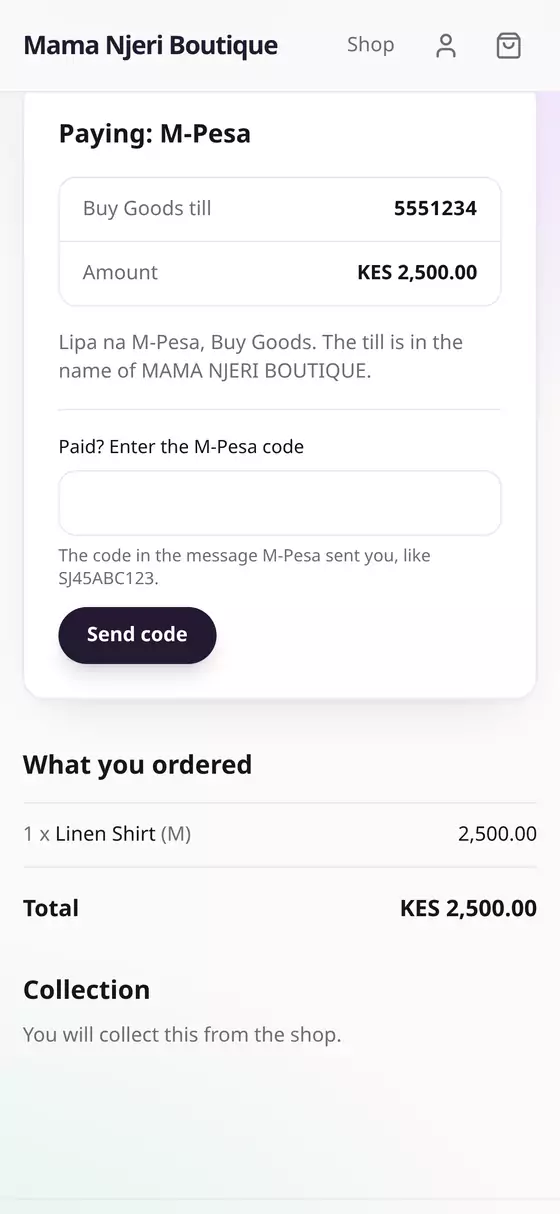
- Their order page shows your till number, the amount, and your instructions.
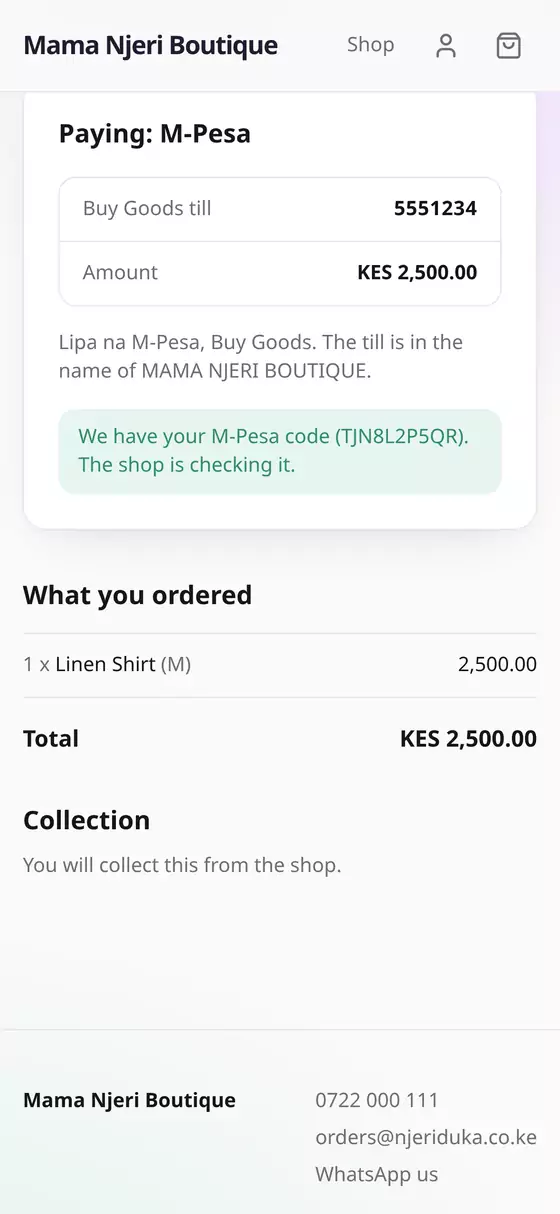
- They pay from their phone. When the M-Pesa message comes, they type its code under Paid? Enter the M-Pesa code and tap Send code.
Step 3: Check it arrived
On your dashboard, Payments to confirm goes up by one.
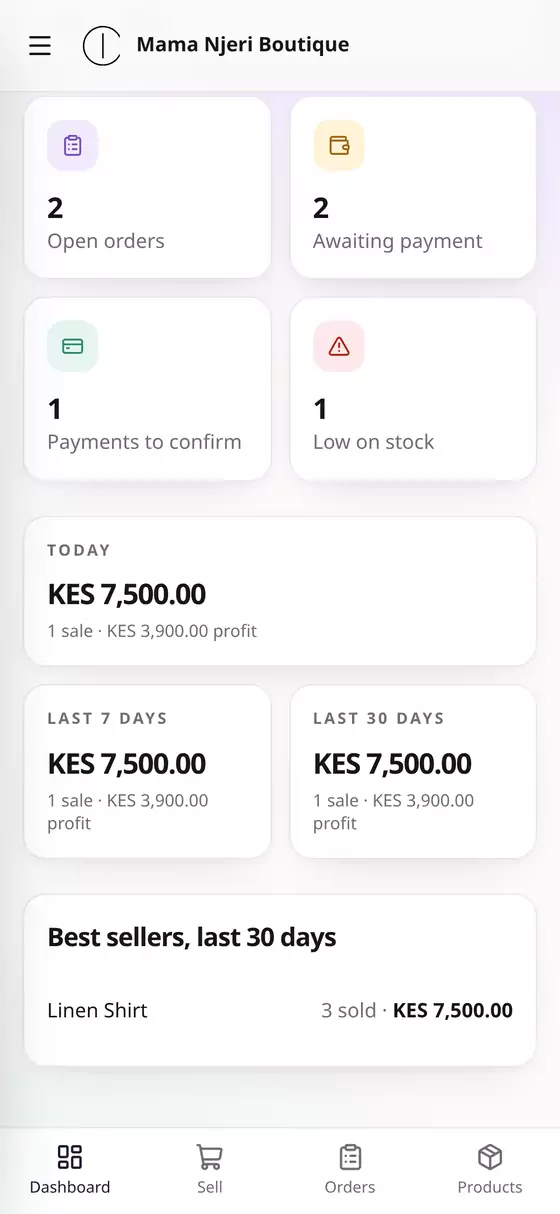
- Tap Payments to confirm, then the order.
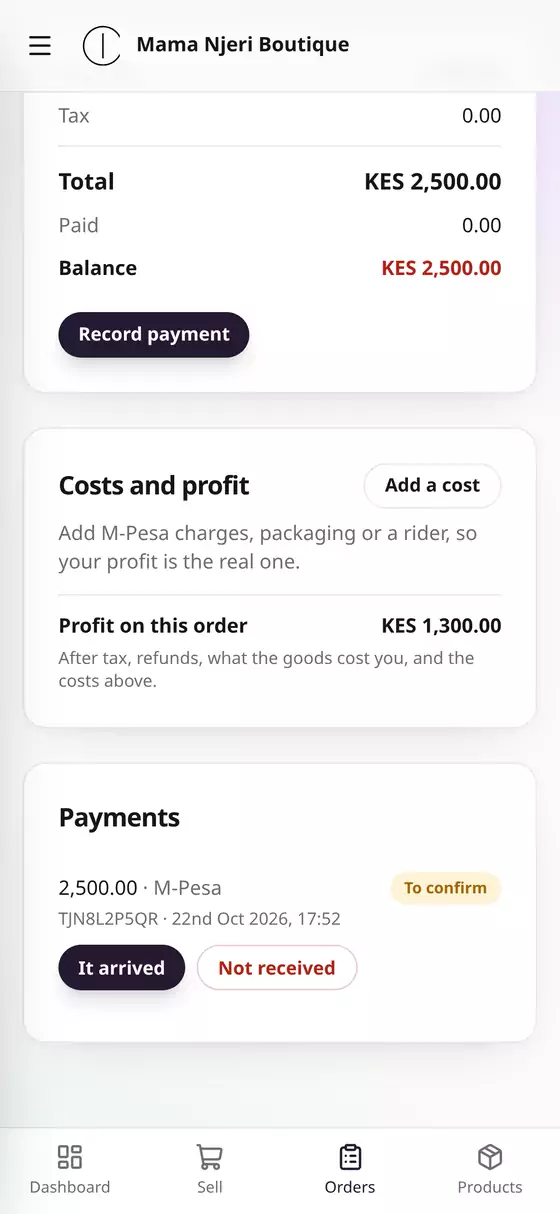
- Under Payments you'll see the amount and the shopper's code, marked To confirm.
- Check your M-Pesa messages for that code and amount.
- Tap It arrived if it's there, or Not received if it isn't.
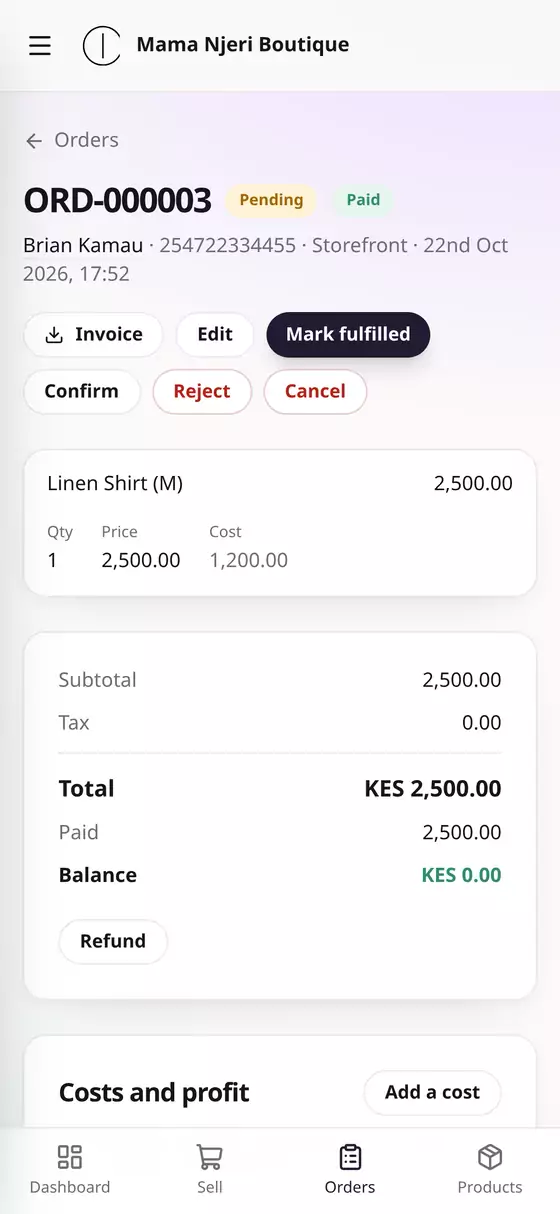
The order is now Paid and the balance is KES 0.00. Next, confirm the order and hand it over (guide 8). Once it's both paid and confirmed, the shopper gets a confirmation email, if they gave their email.
Why check? Anyone can type a code. Always confirm against your own M-Pesa messages before handing over goods. Kwimba won't accept the same code twice.
Part 2: The M-Pesa prompt (automatic)
With the prompt, the shopper never types a code. A payment request pops up on their phone, they enter their PIN, and the order is marked paid by itself. You can also send a prompt from the till or from any unpaid order (Send M-Pesa prompt).
What you need first
Your own app on Safaricom's Daraja portal (developer.safaricom.co.ke), with Lipa na M-Pesa Online switched on for your till or paybill. From it you need:
- your store number (till) or paybill number, plus your till number if it's a till
- the consumer key and consumer secret
- the passkey, which Safaricom emails once Lipa na M-Pesa Online is live on your number
Switching it on
- Settings → Getting paid. Beside M-Pesa prompt, tap Enter keys.
- Choose Till (Buy Goods) or Paybill and fill in the numbers and keys.
- Tap Check with Safaricom and save. Kwimba checks the keys with Safaricom, stores them encrypted, and never shows them again.
- Tap Switch on.
Payments still go straight to your till or paybill.
Questions
Can I take M-Pesa at the counter? Yes. On the Sell screen choose M-Pesa and type the code (guide 4), or M-Pesa prompt once it's set up.
A shopper paid less than the total. On the order, tap Record payment for what did arrive. The order shows as Part paid with the balance still owed.
Can shoppers pay by bank? Yes. Switch on Bank under Getting paid and add your bank and account number.