Guide 4 of 12 · Getting started
Make your first sale at the counter
Ring up a sale on your phone and take cash or M-Pesa.
By the end of this guide you'll have rung up a sale on your phone, taken the money, and seen it come off your stock and show up in today's takings.
The example sells two Linen Shirts in size M and one in L, paid by M-Pesa.
Step 1: Open the till
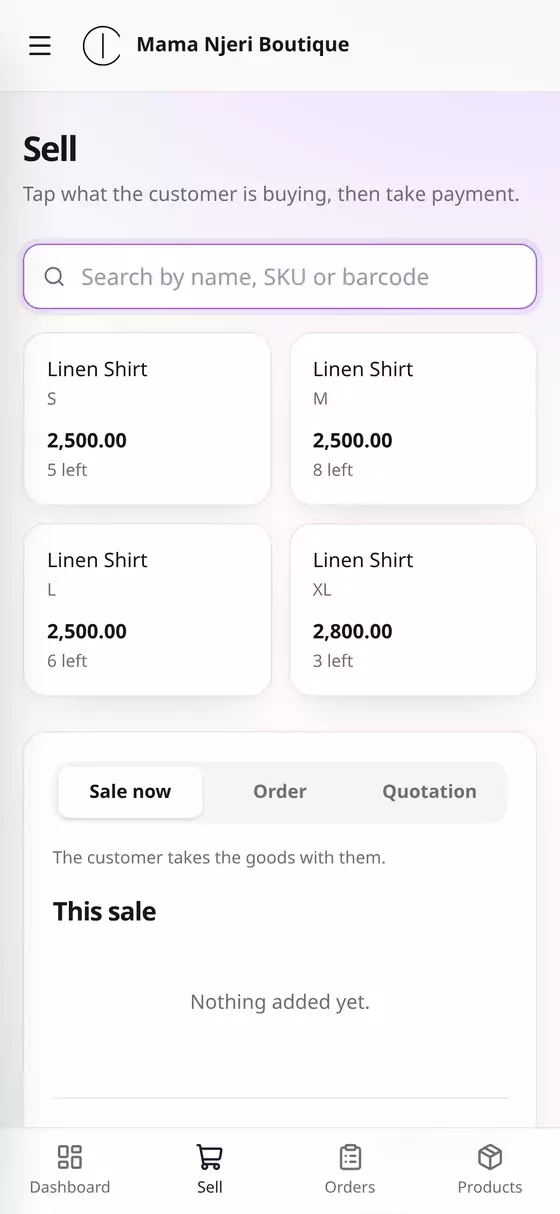
Tap Sell at the bottom of the screen, or New sale on your dashboard.
Every product you sell is a tile showing its price and, if you count its stock, how many are left. Too many to scroll through? Type in Search by name, SKU or barcode.
Step 2: Tap what the customer is buying
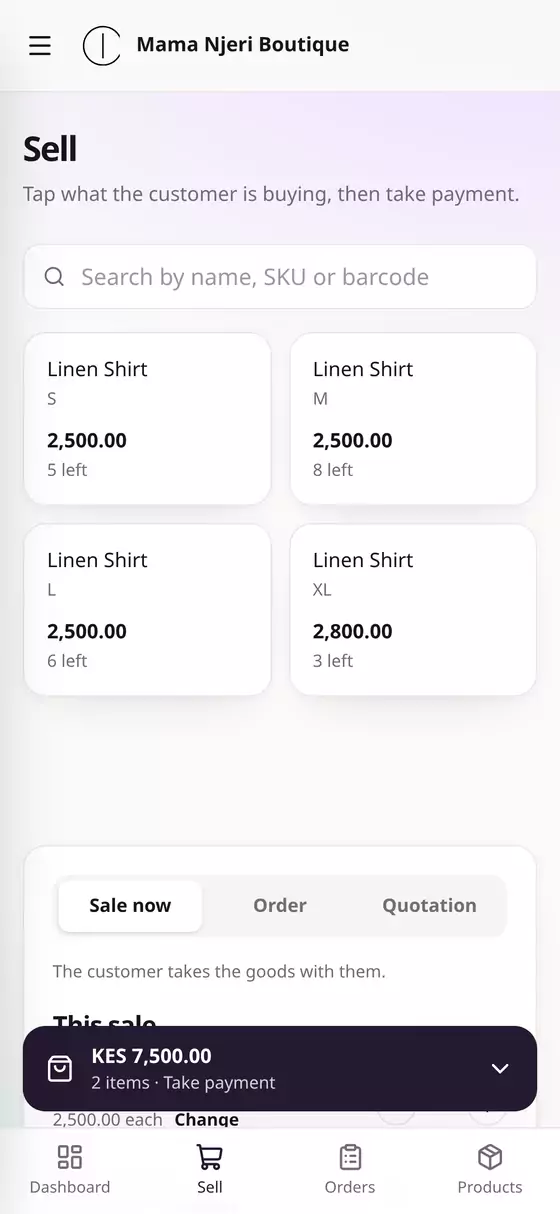
Tap a tile once for each item. Tapping Linen Shirt M twice adds two.
A bar at the bottom keeps the running total in view, e.g. KES 7,500.00 · 2 items · Take payment. Tap it to go to the sale.
Step 3: Check the sale
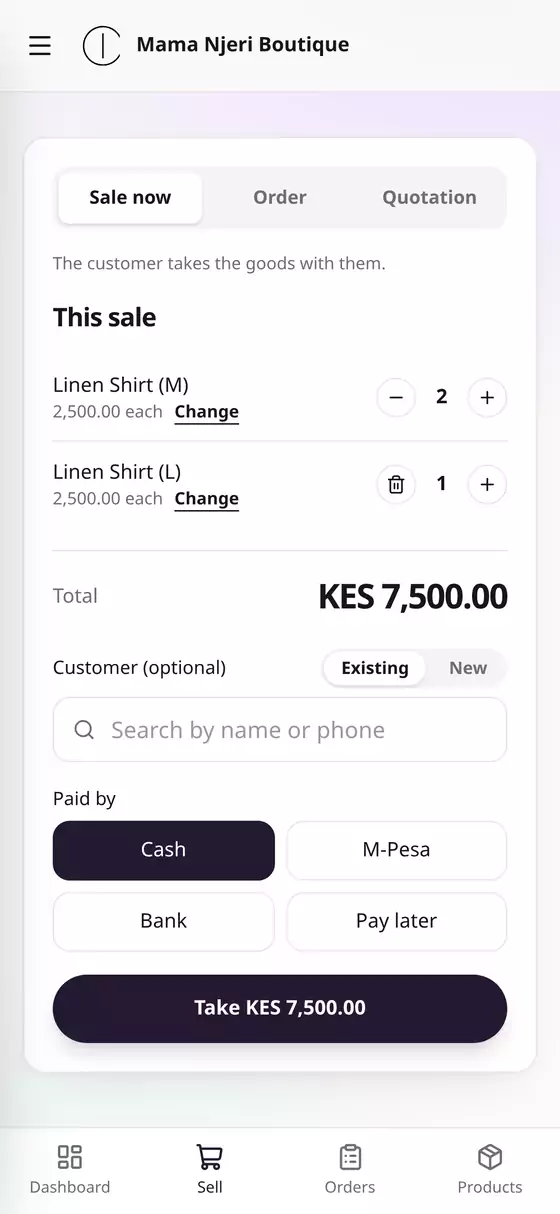
Under This sale you'll see each item with its quantity:
- Use + and − to change how many. At 1, the bin removes the item.
- Change lets you give a different price for this sale only, e.g. for a regular customer. Only people allowed to give discounts see it.
- Customer is optional for a sale at the counter. Pick an existing customer or add a new one, and the sale goes in their history.
Step 4: Take the money
Under Paid by, choose how the customer paid:
- Cash
- M-Pesa: type the M-Pesa code from the customer's payment message, e.g. TJM4K7Q2LX. It's optional, but it stops the same payment being used twice.
- Bank: add the bank reference if there is one.
- Pay later: for customers who'll pay you later. The sale is saved as unpaid.
Then tap Take KES …. The button shows the amount.
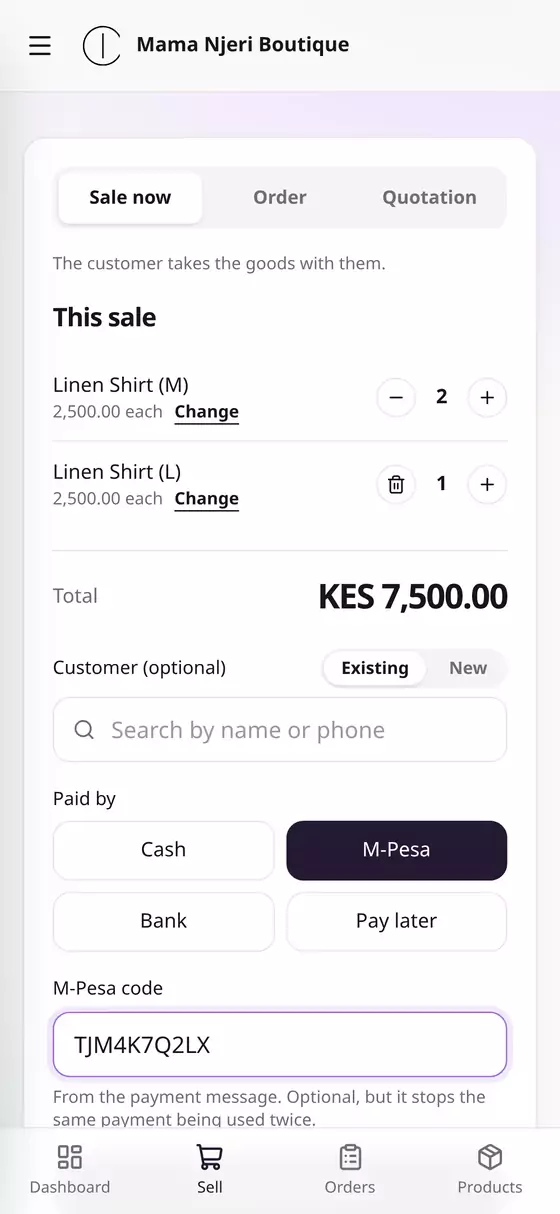
Have the M-Pesa prompt switched on? You'll also see M-Pesa prompt, which sends a payment request straight to the customer's phone. See guide 6, How M-Pesa payments reach you.
Step 5: Done
A green note confirms it, e.g. Sale ORD-000001 saved · KES 7,500.00 · paid, and the till is cleared for the next customer.
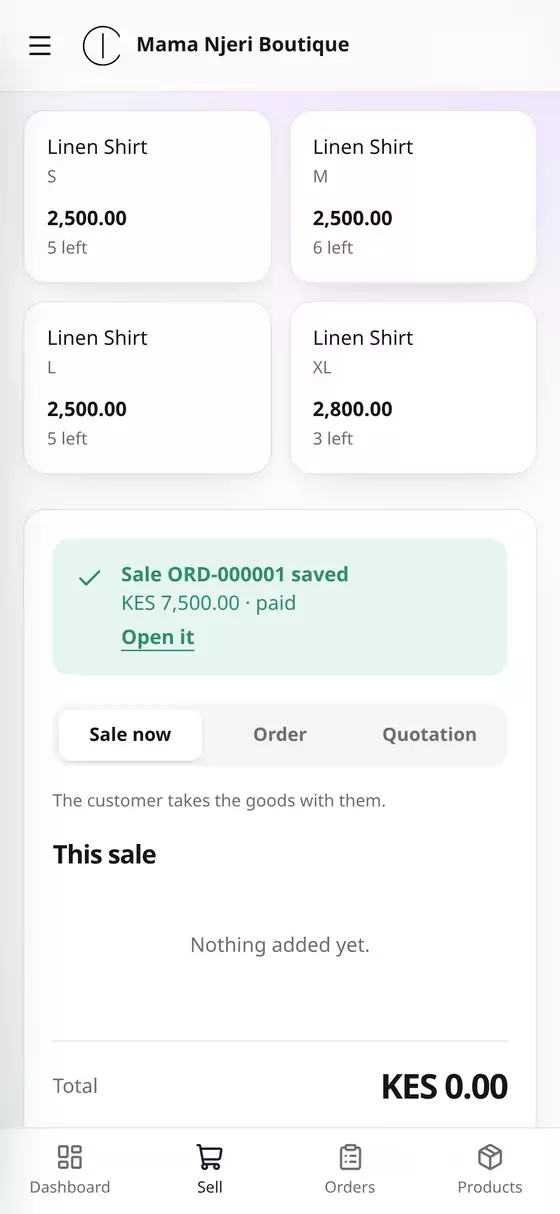
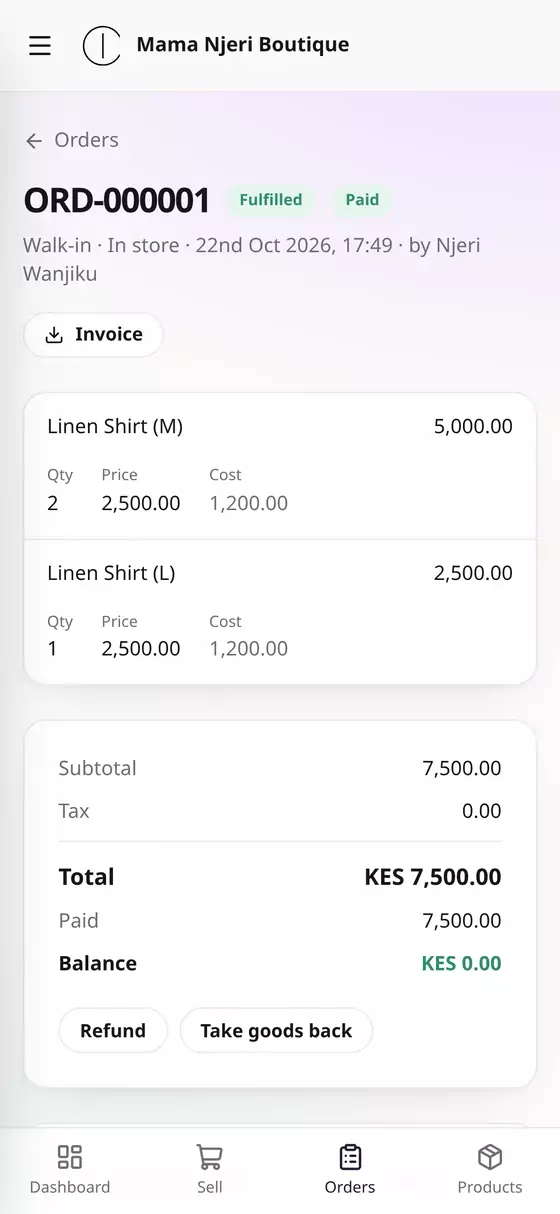
Tap Open it to see the sale: what was sold, the payment, and your profit on this order (worked out from each product's buying price). From here you can:
- Invoice: download a PDF invoice to send to the customer.
- Refund: give money back.
- Take goods back: record a return, which puts the items back in stock.
What happens next, by itself
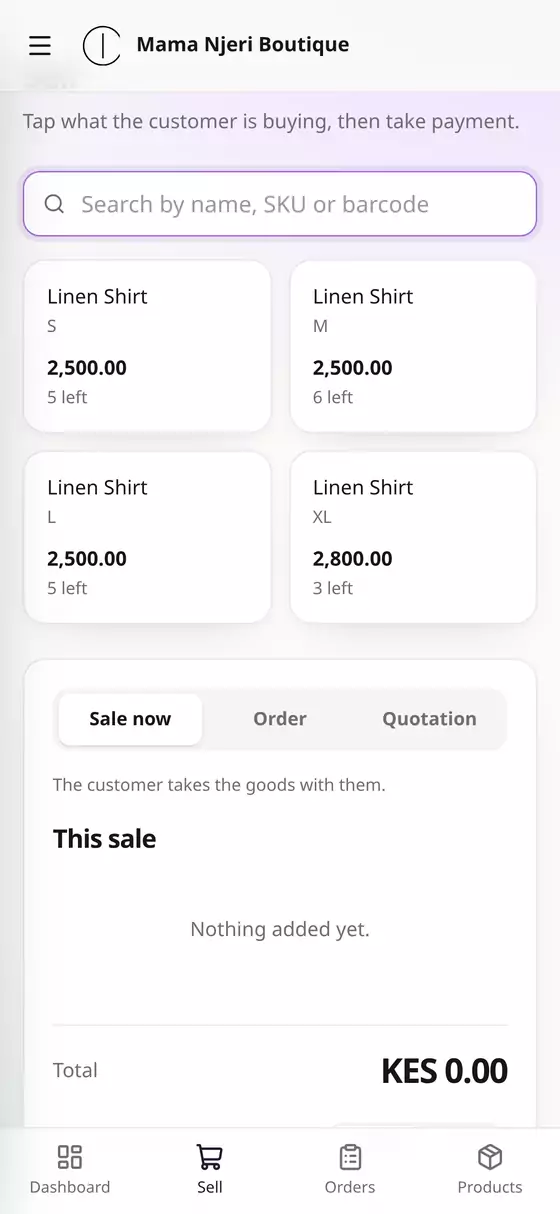
- Stock comes off straight away. The tiles now show 6 left in M and 5 in L.
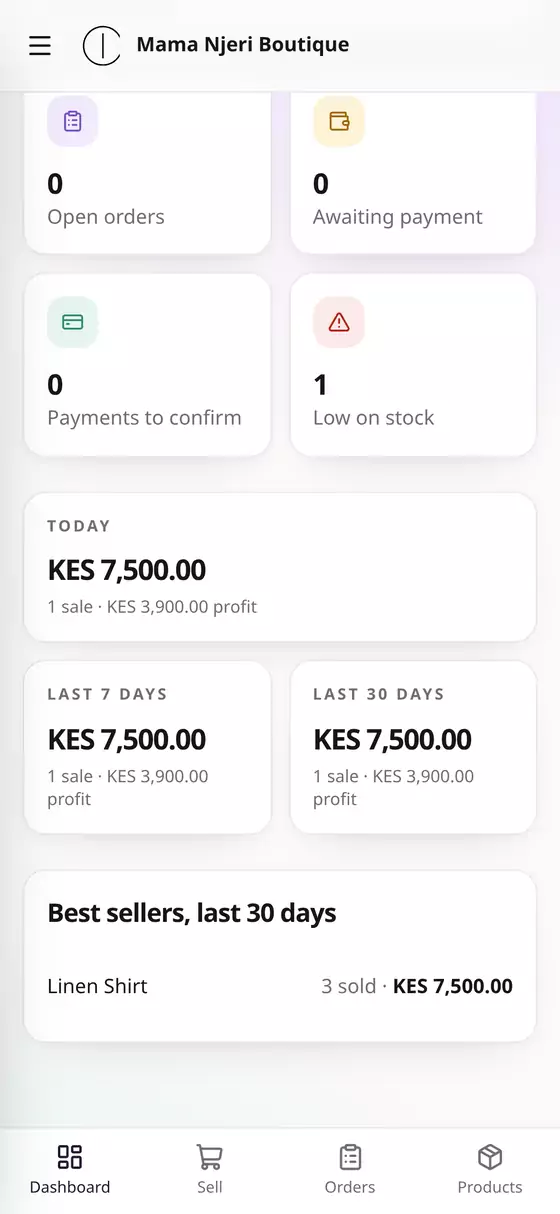
- Your dashboard updates. Today shows the sale and its profit, and Best sellers starts filling in.
Orders and quotations
At the top of the sale are three tabs:
- Sale now: the customer takes the goods with them. That's what this guide covers.
- Order: to be collected or delivered later. Its stock is held until you fulfil it. You can add a delivery address and fee, and note where the order came from (WhatsApp, a phone call, Instagram…).
- Quotation: a price to send the customer. Nothing is held until they accept it.
Questions
Can my staff sell without seeing my buying prices and profit? Yes. Give them the Sales role (guide 7). They can sell, but never see what things cost you.
I have more than one shop. Pick the location at the top of the Sell screen, and the stock comes off that one (guide 11).