Guide 5 of 12 · Selling online
Share your shop link and get your first online order
Where to share your shop, what shoppers see, and how orders reach you.
Your online shop went live the moment you opened your store. By the end of this guide you'll have shared its link and seen an order come in from a shopper.
Step 1: Check how shoppers can order
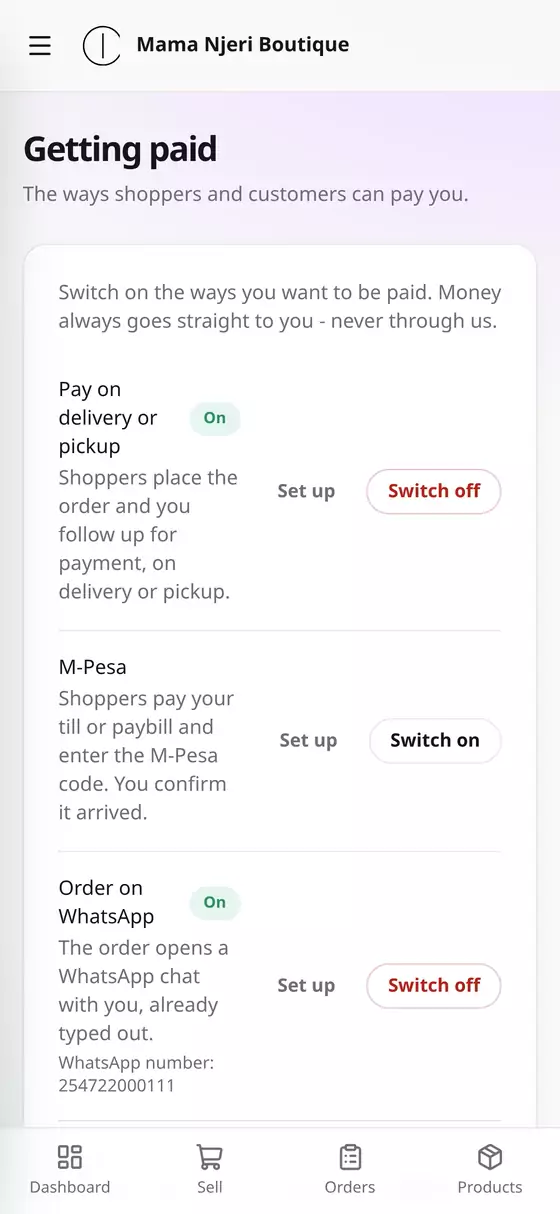
Open the menu (☰), tap Settings, then Getting paid. Every new store starts with two ways to order already switched On:
- Pay on delivery or pickup: the shopper places the order, and you arrange payment when they collect it or it's delivered.
- Order on WhatsApp: the shopper's cart opens as a WhatsApp message to you, already typed out. (Only if you added a WhatsApp number when you opened the store.)
That's enough to start taking orders. To be paid by M-Pesa when the order is placed, see guide 6.
Step 2: Copy your shop link
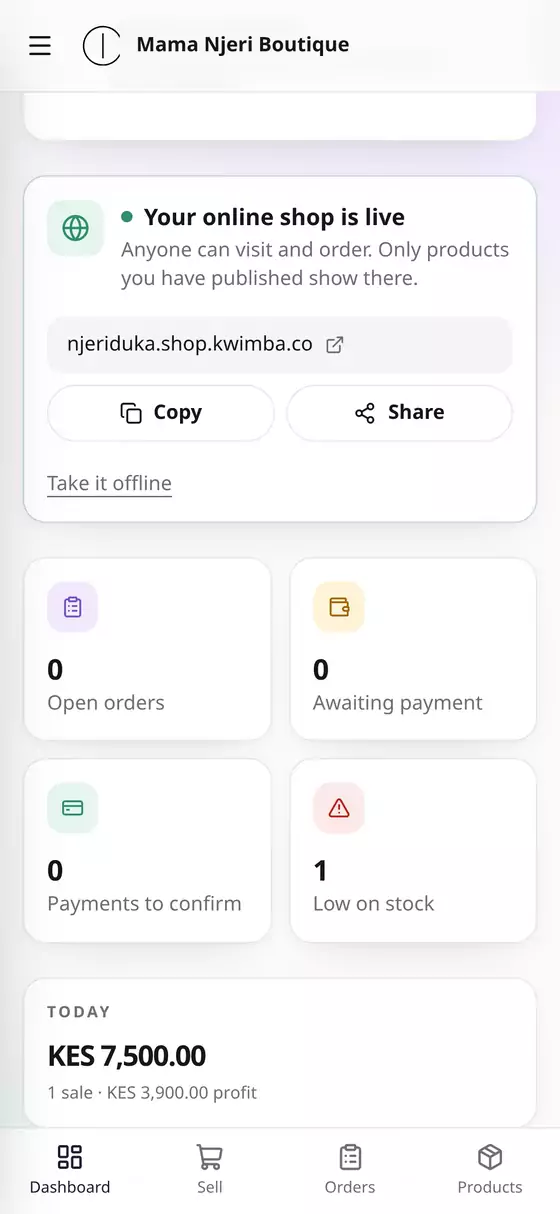
On your dashboard, the Your online shop is live card shows your shop's address, e.g. njeriduka.shop.kwimba.co.
- Copy puts the link on your phone's clipboard, ready to paste.
- Share opens your phone's share menu, so you can send it straight to WhatsApp, Instagram and the rest.
Where to put it:
- Your WhatsApp status and WhatsApp Business profile
- Your Instagram and TikTok bio. Then, instead of "DM for price", reply "Order here 👉 link".
- Under every product photo you post
- On posters, receipts and your shop door, as a QR code
Step 3: What a shopper sees
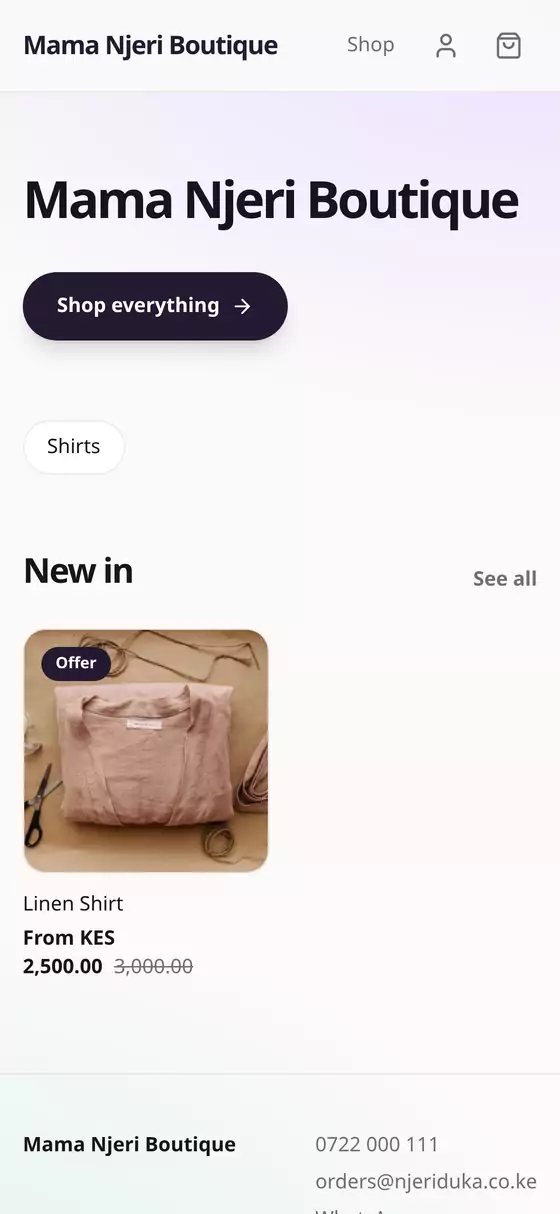
When a shopper opens your link they see your shop, your products and their prices. To order, they:
- Tap a product and choose a size.
- Tap Add to cart, then the cart icon, then Checkout.
- Fill in their name and phone number. Email is optional, and if they give it they get their order confirmation by email.
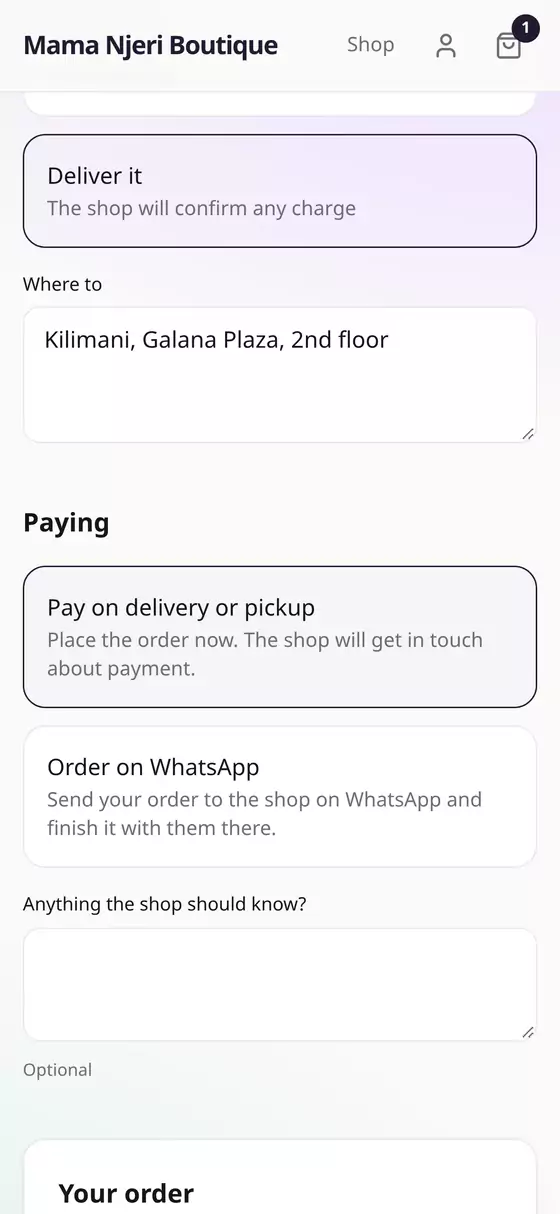
- Choose I'll collect it or Deliver it, and for delivery say where.
- Choose how to pay, e.g. Pay on delivery or pickup, and tap Place order.
They get an order number and a page to check on their order.
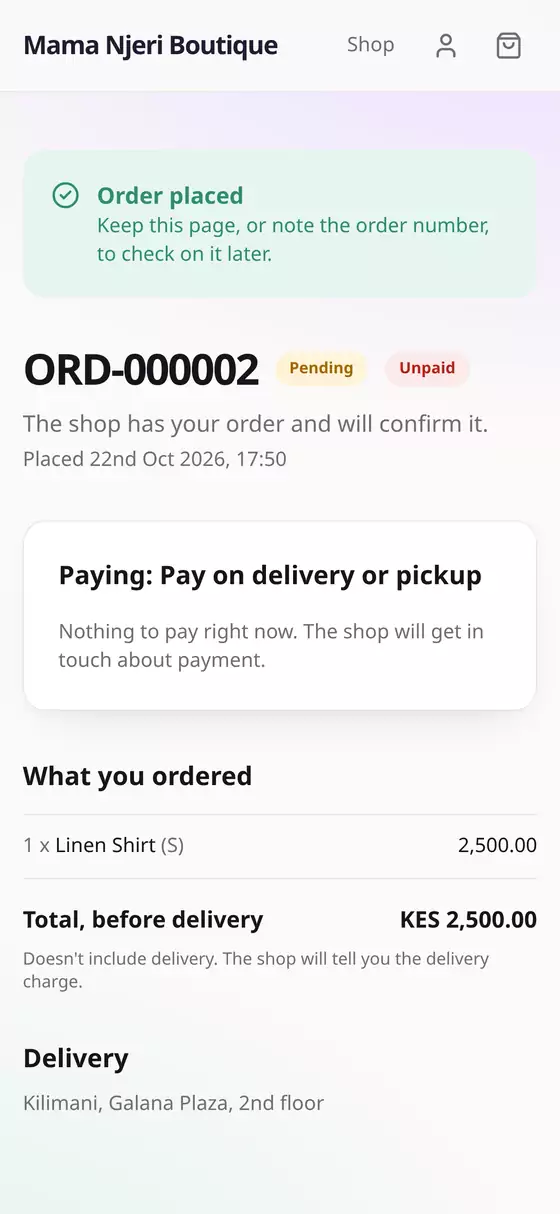
Step 4: See the order come in
The moment an order is placed, Kwimba emails you, and any admins on your team. The email says who ordered, what they ordered, the total, how they're paying, and where it's going, with a button straight to the order.
In Kwimba, the order also shows on your dashboard under Open orders (and Awaiting payment if it isn't paid yet).
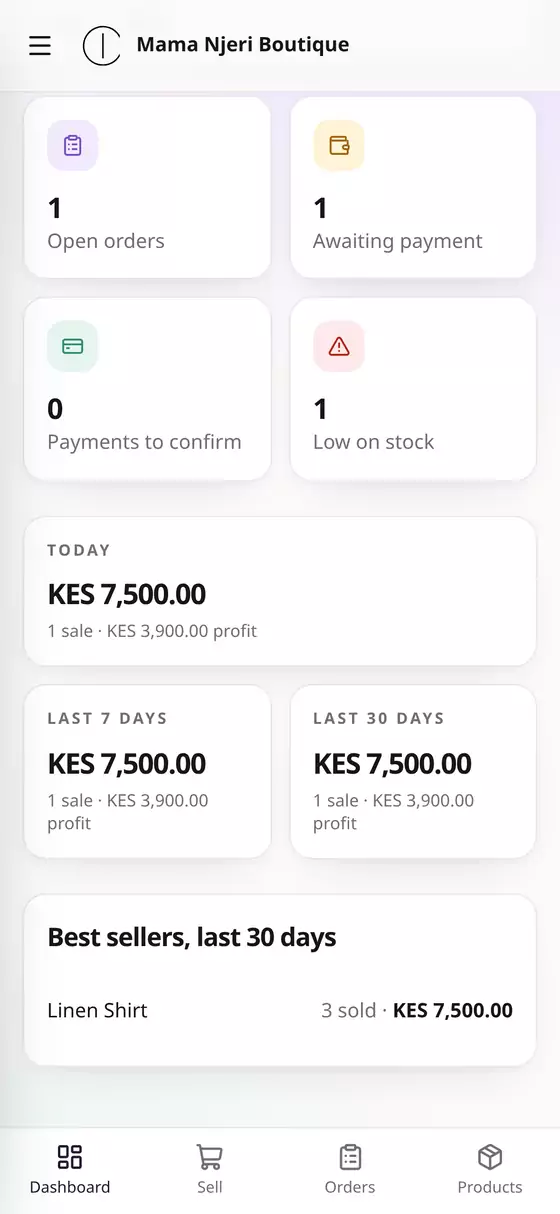
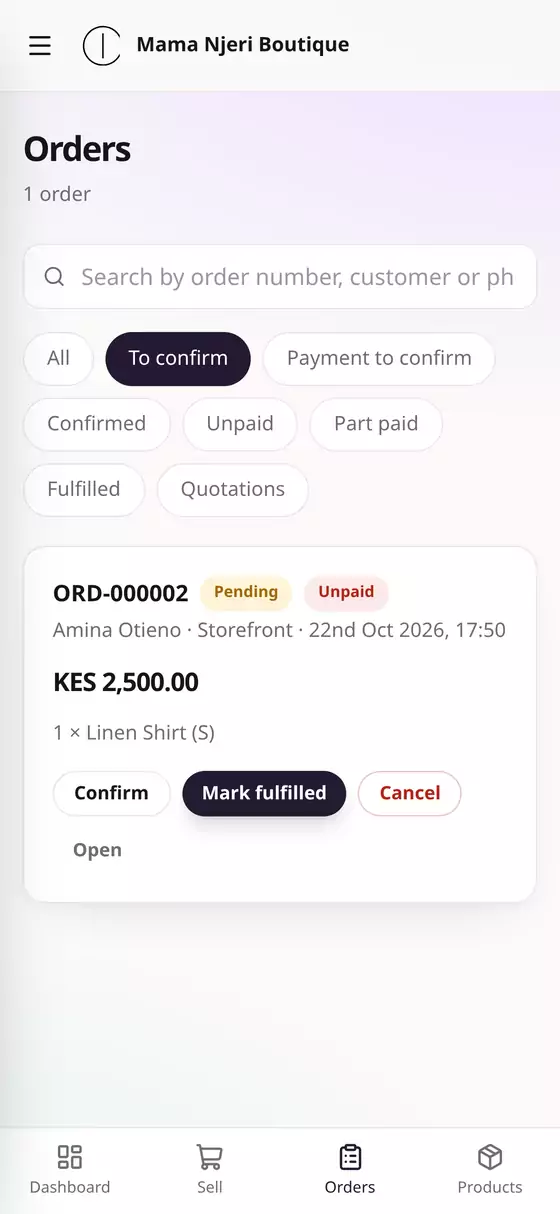
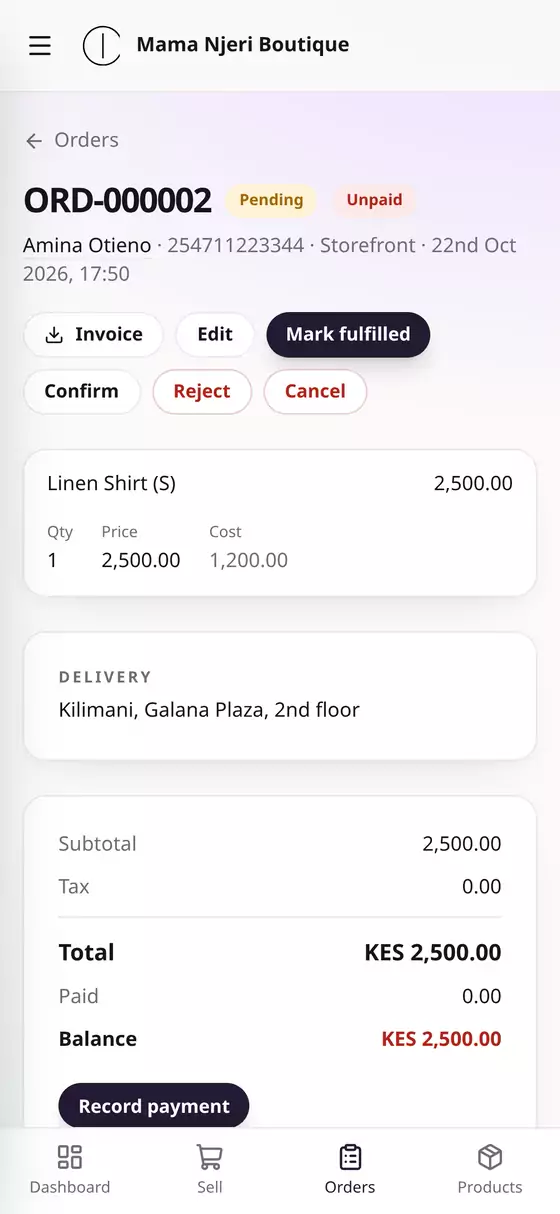
Tap Open orders to see it in Orders, then tap the order for everything about it: what they ordered, the shopper's name and phone, where to deliver, and what they owe.
What you do next (confirm it, get paid, deliver it) is guide 8, Track and fulfil orders.
Questions
Can I close the shop for a while? Yes. On the dashboard's shop card, tap Take it offline. Shoppers see that you're closed, and you can still sell at the counter. Switch it back on from the same card.
Some of my products shouldn't be online. Open the product, tap Edit and switch off Show on the storefront. It stays on your till.
Can I change how my shop looks? Yes: Settings → Online shop for your logo, colours and theme.